Vi and Vim Text Editors commands Explained
Vim (vi) is a versatile text editor. Vi is the first visual text editor. Vim is the updated version of vi. Both editors use the same commands for text manipulation. If you know one, you can use another as well. This tutorial uses vim for explanation and examples. You can use the same commands and steps on vi for text editing and updating.
Vim (vi) is available on all versions, platforms, and distributions of Linux. It works in two modes: insert and command. The insert mode allows us to add, update, and remove text. The command mode controls text manipulation tasks such as copy, paste, find, replace, and delete. It also has commands for saving and closing the file.
Command syntax
The vim (vi) command uses the following syntax.
$vim [file-name]
If the specified file exists, it opens that file. If not, it creates a new file with the specified name and opens it for editing.
Creating a test file for practice
Although you can use any existing regular text file for practice, creating and using a new text file in a separate directory would be better. It lets you complete the practice without messing up the existing file system. Access a shell prompt and run the following commands to create a new test file named 'regular-file-vim' in the 'test' directory and open it for editing using the vim command.
#mkdir test
#cd test
#vim regular-file-vim

By default, vim opens the file in the command mode.

Inserting and appending text
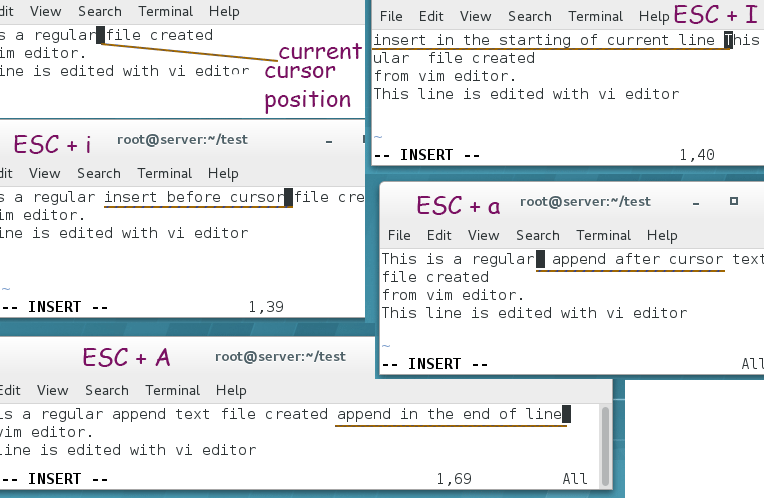
Vim uses the cursor position as the base position for editing. You can use one of the following commands depending on where you want to insert or edit the text in the line.
- To insert text at the cursor position, press the 'Esc' key and then the 'i' key.
- To add text after the cursor position, press the 'a' key followed by the 'Esc' key.
- To insert text at the beginning of the line, use the 'I' key along with the 'Esc' key.
- To insert text at the end of the line, use 'A' with the 'Esc' key.
Inserting a new blank line
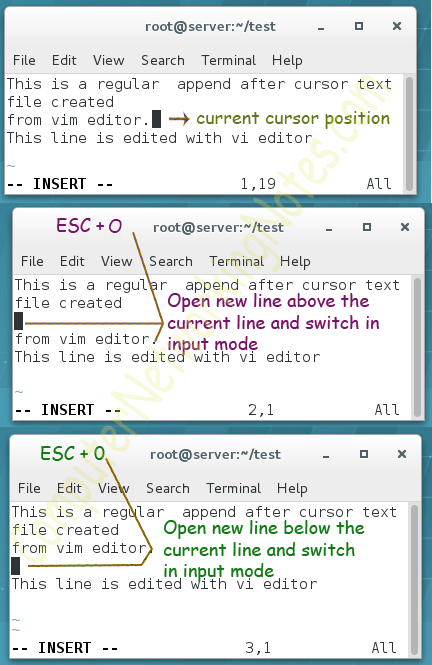
- To insert a new blank line above the line, press the 'Esc' key, then press the 'O' key.
- To insert a new blank line below the line, press 'o' key followed by the 'Esc' key.
By default, it only inserts one line. To insert multiple lines, specify the number of lines before pressing the O/o key. For example, to insert three blank lines above the cursor line, use the 'Esc + 3 + o' keys combination.
Cutting and pasting
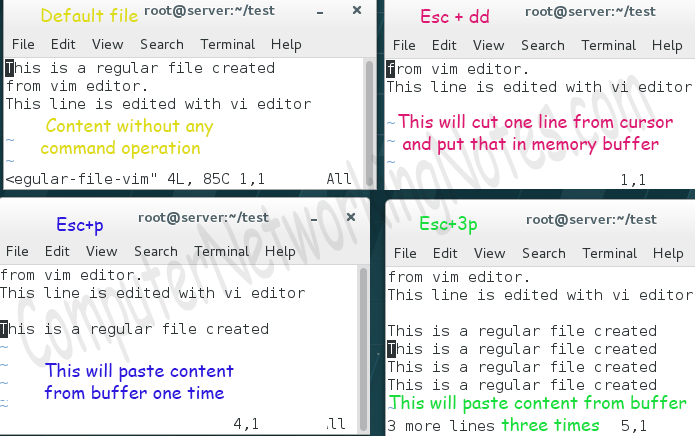
To cut a line, use the 'dd' command. It cuts the line in which the cursor remains and puts that line into a memory buffer. To paste the copied line from the buffer, use the 'p' command. This command pastes the copied line in the current line of the cursor. By default, both commands perform their action only one time. It means that the 'dd' command cuts a single line, and the 'p' command pastes the copied line only once. To cut multiple lines or paste the contents from the memory buffer numerous times, specify the desired numbers before these commands. For example, use the 'Esc + 3 + d + d' keys combination to cut three lines. Press the 'Esc + 4 + p' keys to paste the contents four times.
Copying and pasting
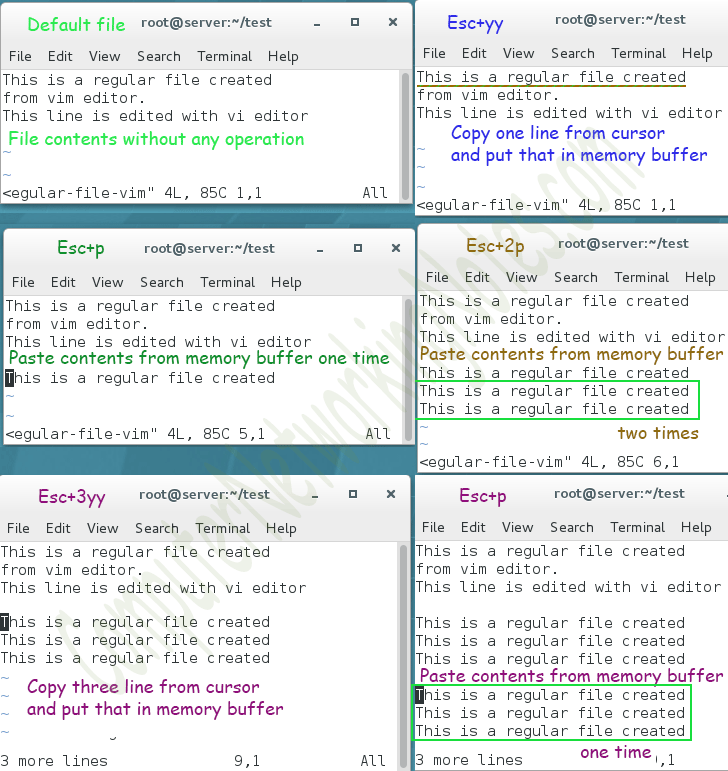
The copy-and-paste operation also works similarly to the cut-and-paste operation. To copy a line, use the 'yy' command. This command copies the current line into a memory buffer. To copy multiply lines, specify the number of lines before the 'yy' command. For example, use the 'Esc + 4 + y + y' keys combination to copy four lines. You can also copy a single or multiple characters and words like a line. To copy a single character from the cursor, use the 'yl' command. To copy a single word from the cursor, use the 'yw' command. To paste the copied contents, use the same 'p' command.
Finding text
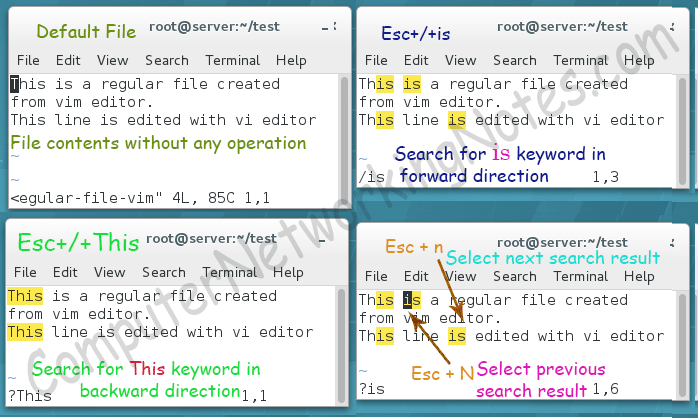
Use the 'Esc + / + [String]' command to find a text string in the forward direction. Use the 'Esc + ? + [String]' command to find a text string in the backward direction. To navigate between search results, use the n key with the Escape key. To move in the backward direction, use the 'Esc + N' key. To move in the forward direction, use the 'Esc + n'.
Finding and replacing text
To replace the first occurrence of the text, use the following command.
Esc + : + % + s + / + [old text] + / [new text]
To replace all occurrences of the text, use the following command.
Esc + : + % + s + / + [old text] + / [new text] + / +g

Deleting text
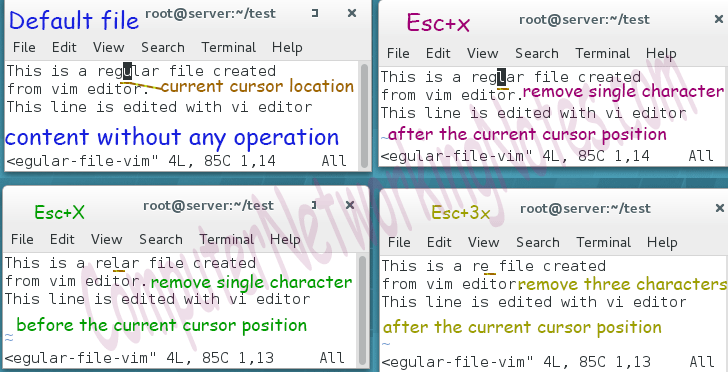
To remove a single character from the cursor position in the forward direction, press the 'x' key followed by the 'Esc' key. To remove a single character from the cursor position in the backward direction, press the 'Esc' key and then press the 'X' key.
- To remove a single word after the cursor, use the 'Esc + d + w' command.
- To remove a single word before the cursor, use the 'Esc + d + W' command.
- To delete a line, use the 'Esc + d + d' command.
- To delete multiple lines, specify the number of lines before the 'dd' command.
Reverting (undo/redo) the last action
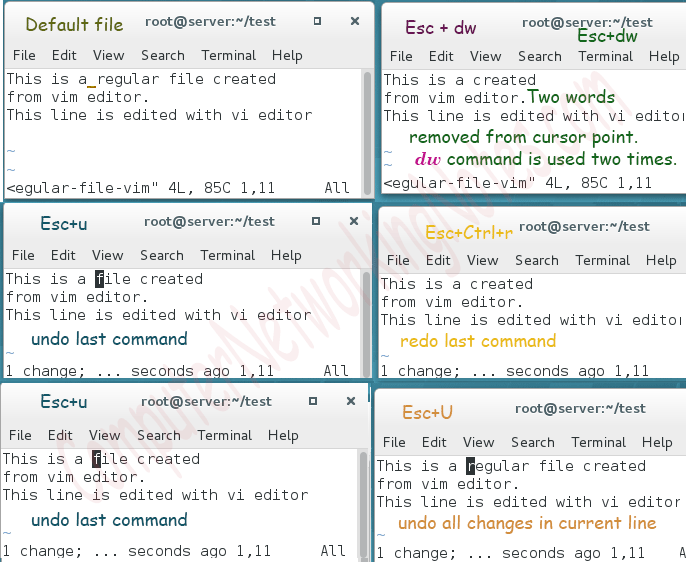
To undo the last action or command, press the 'Esc' key and then the 'u' key. To undo all actions performed in the current line, press the 'U' key after pressing the 'Esc' key. Use the 'Esc + Ctrl + r' command to redo the last command.
Setting line numbers
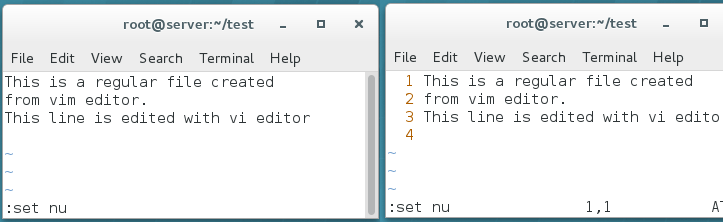
By default, it does not display line numbers. But if required, we can display them using the 'Esc+:+set +nu' command.
Save and exit
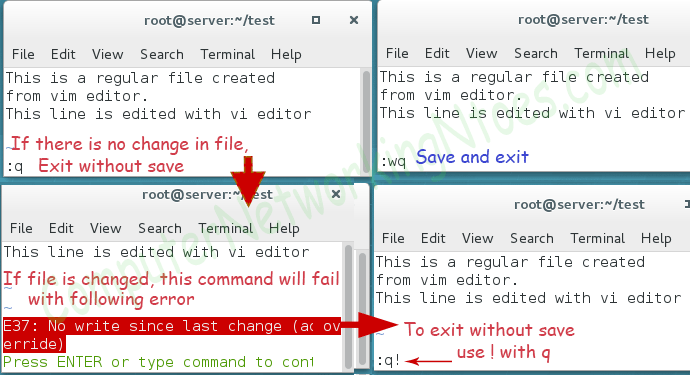
Use the 'Esc +: + w + q' command to save changes and quit. To exit without saving, use the 'Esc +: + q +!' command. If the file is not changed, you can use the 'Esc +: + q' command to exit.
This tutorial is part of the tutorial series 'vi Editor in Linux'. Other parts of this series are the following.
Chapter 1 Features of Vi and Vim Explained with Differences
Chapter 2 Vi and Vim Modes Explained Through Examples
Chapter 3 Vi and Vim Text Editors Commands Explained
Conclusion
Vim (vi) uses commands to manipulate text. This tutorial explains these commands through various examples. Learning these commands can significantly enhance text manipulation efficiency in a Linux environment. Practising these commands will make you more proficient and comfortable while using vim for editing or creating text files.
Author Laxmi Goswami Updated on 2026-09-30