How to Configure LUKS File Encryption in Linux
LUKS (Linux Unified Key Setup-on-disk-format) provides the default block device encryption on RHEL Linux. It is optional. If you enable it, you need a passphrase or key to access the encrypted contents. You can use it on mobile computers and removable media to secure your confidential data.
Key points:-
- It encrypts entire block devices, making it an ideal solution for protecting the contents of mobile devices, such as removable storage media and laptop hard drives.
- The encrypted block device can hold arbitrary data. This feature is beneficial for many databases that utilize specifically formatted block devices for data storage.
- It leverages the existing device mapper subsystem in the Linux kernel.
- It utilizes multiple key slots, allowing users to add backup keys or passphrases for enhanced flexibility and security.
- It uses passphrases to mitigate dictionary attacks.
- It protects the data only when the system is off. Once the system is up and the LUKS has decrypted the disk, the data on that disk is available to anyone who has access to it.
- There are two versions of it. LUKS1 and LUKS2. RHEL uses LUKS2 as the default.
- LUKS1 and LUKS2 use different commands to encrypt the disk. Using the wrong command for a LUKS version might cause data loss.
Enabling LUKS at boot time
The RHEL installation process provides an option to enable LUKS on the installation drive and partitions when you create them. If you enable it, the system prompts you for a passphrase every time you boot the computer.
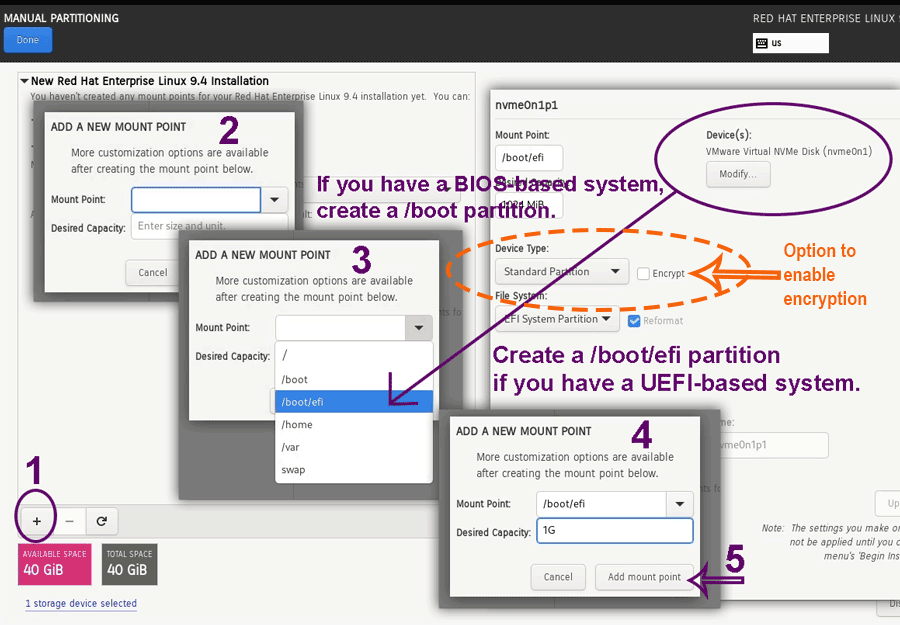
If you skip it during the installation, you can enable it any time after the installation.
Encrypting a partition or drive after the installation
This section explains the configuration steps you need to encrypt a partition or a drive through an example.
Attach the drive you want to encrypt to the system and create the necessary partitions on it. You can use any tool or utility to create partitions.
#lsblk	[command to list all attached drives and their partitions]
#fdisk /dev/nvme0n2 	[tool to create partitions, replace nvme0n2 with you disk]
n	[create a new partition]
Create a partition with default values or specify custom values
p 	[print the partitions]
w	[save the changes]
#partprobe 	[Update the kernel about the change]
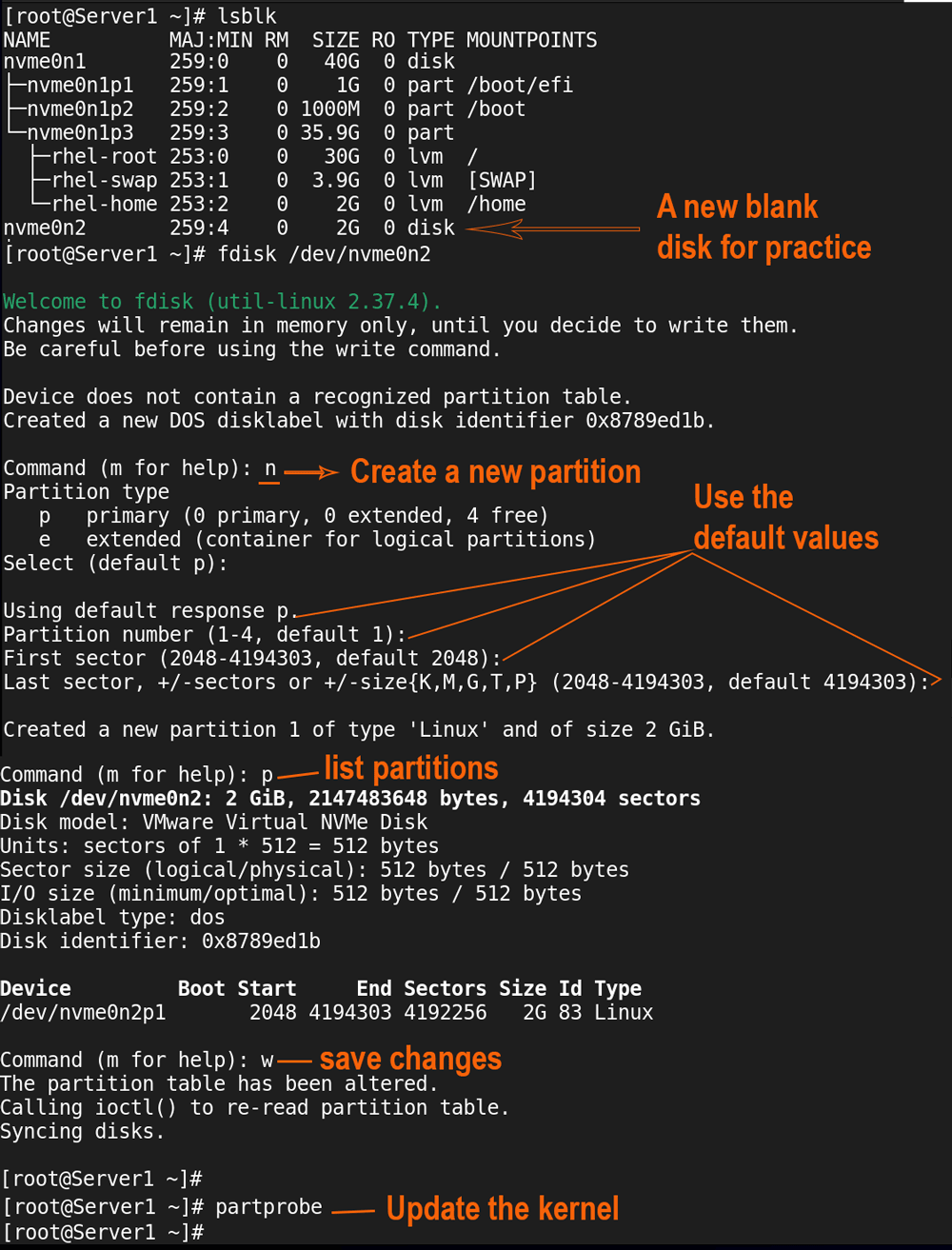
You can check the following tutorial to learn more about the fdisk command.
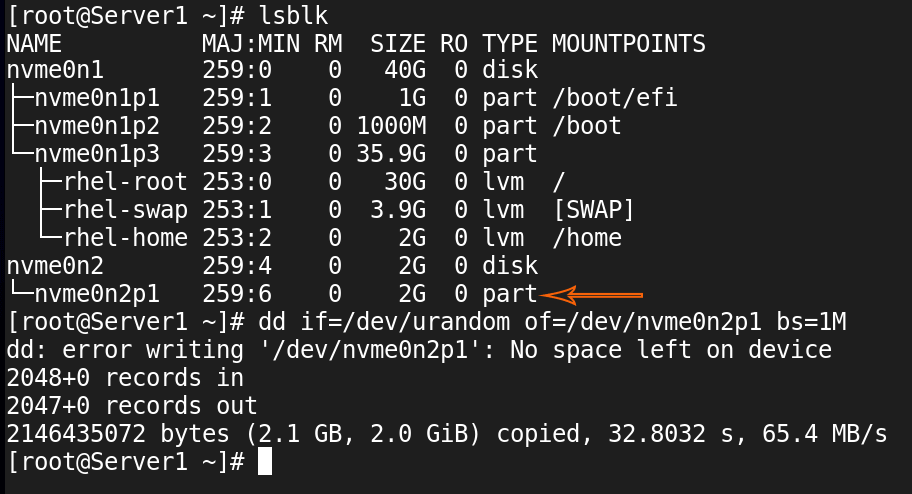
The fdisk Command on Linux ExplainedAfter creating partitions, if required, you can fill them with random characters. It enhances the encryption. However, it takes a lot of time. It is an optional step. You can follow or skip it as per your convenience.
#dd if=/dev/urandom of=/dev/nvme0n2p1 bs=1M
Replace nvme0n2p1 with the partition you want to fill with random characters.
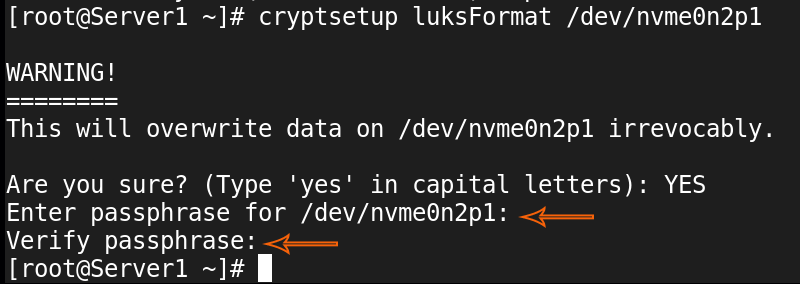
The cryptsetup command enables, manages, and removes encryption. It accepts the drive or partition path as the argument. It supports various options for different tasks. The luksFormat option formats the specified device and enables LUKS encryption.
#cryptsetup luksFormat /dev/nvme0n2p1
Replace nvme0n2p1 with your partition name. It takes confirmation before enabling the encryption. To confirm the action, type YES in capital letters. You also need to provide a passphrase. You need this phrase to access the encrypted drive. You cannot choose a simple password here. You must pick a complex password or a phrase here.
Instead of the device name, you can access the encrypted drive or partition with a descriptive name. For this, create a mapping between the device path and the name you want to use for it. The following command maps the /dev/nvme0n2p1 with the name secure_data. Replace these with your values. You need to authenticate this action. Use the passphrase you set up earlier for authentication.
#cryptsetup luksOpen /dev/nvme0n2p1 secure_data

You can use a partition for data saving only when it has a file system. You can use any file system of your choice. The following command creates an ext4 file system on the secure_data (nvme0n2p1) partition.
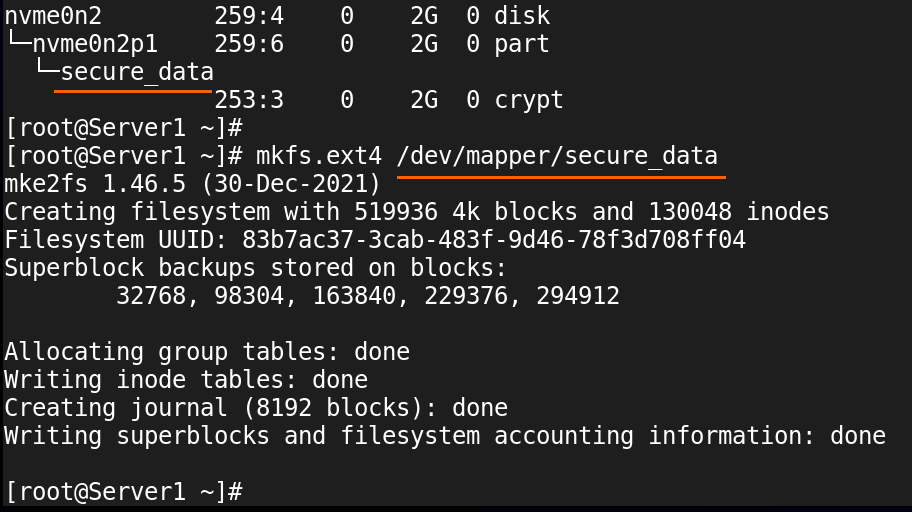
After creating a file system on the partition, you need to save this information in the following two configuration files.
- The /etc/crypttab file:- It saves mapping information.
- The /etc/fstab file:- It saves partition information.
Add mapping information to the /etc/crypttab file.
#vim /etc/crypttab
secure_data	/dev/nvme0n2p1
:wq
#cat /etc/crypttab
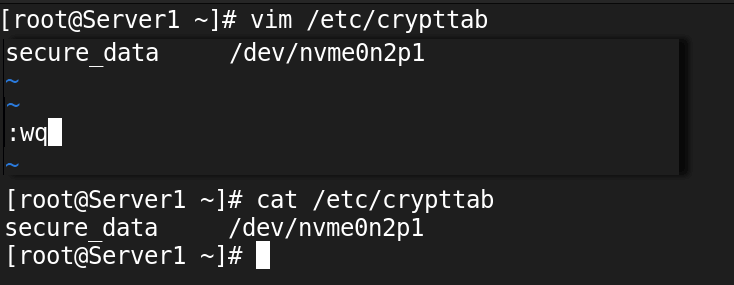
You need a mount point to access a partition. A mount point is a directory. It allows you to access the mounted drive or partition. Create a directory and add the partition information to the /etc/fstab file that maps it to the encrypted partition.
#mkdir /secure_data
#vim /etc/fstab
/dev/mapper/secure_data	/secure_data	ext4	defaults	0 0
:wq
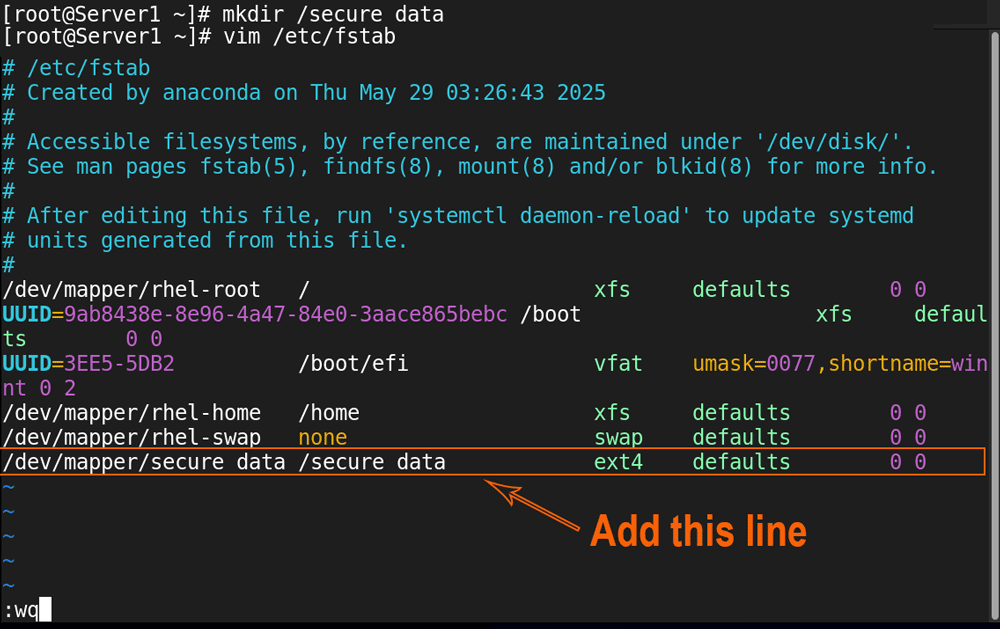
Linux reads the /etc/fstab file at boot time. If you change this file, the change will apply at the next reboot. To implement the change in the current session, you can use the 'systemctl daemon-reload' command. This command forces the kernel to reread the /etc/fstab file. To verify it, you can use the mount command.
#mount -a
#systemctl daemon-reload
#mount -a
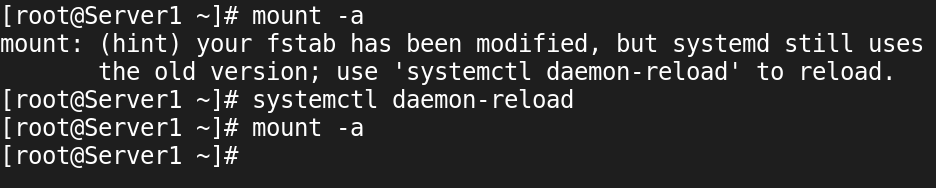
Access the encrypted partition and create a file and a directory on it.
#ls /secure_data
#mkdir /secure_data/testdir
#cat > /secure_data/testdir/testfile
This is a test file.
Ctrl+d
#
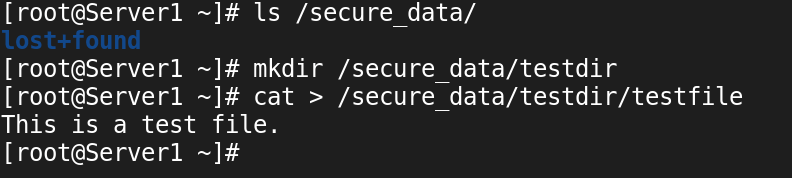
LUKS protects data only when the system is off. When you start the system, it asks for the passphrase. If the supplied passphrase is correct, it decrypts the encrypted disk. Once LUKS has decrypted the disk, the files on the disk are available to all. It does not protect the files on the running system. To verify it, restart the system.
#reboot -f

If the system has a LUKS-encrypted block device, the boot process asks for the passphrase to decrypt it.
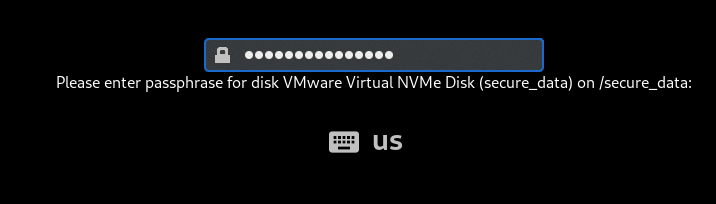
If you enter the wrong password, it halts the boot process. If you enter the correct password, it decrypts the disk and shows the login prompt.
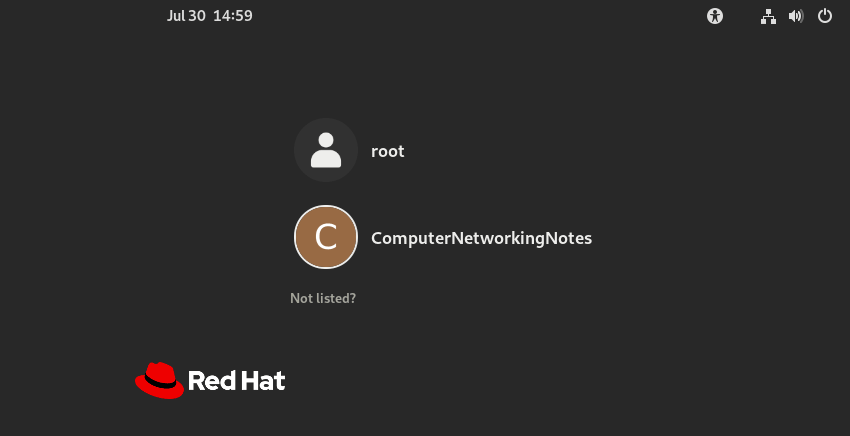
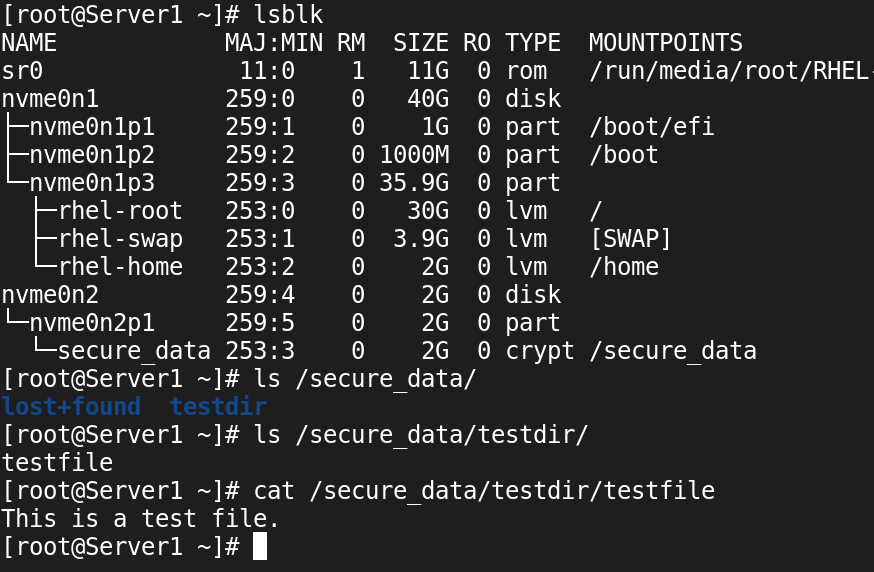
After logging in, you can check the file and directory created on the encrypted partition to verify that LUKS has decrypted the partition.
#lsblk
#ls /secure_data
#ls /secure_data/testdir/
#cat /secure_data/testdir/testfile
Cleaning up
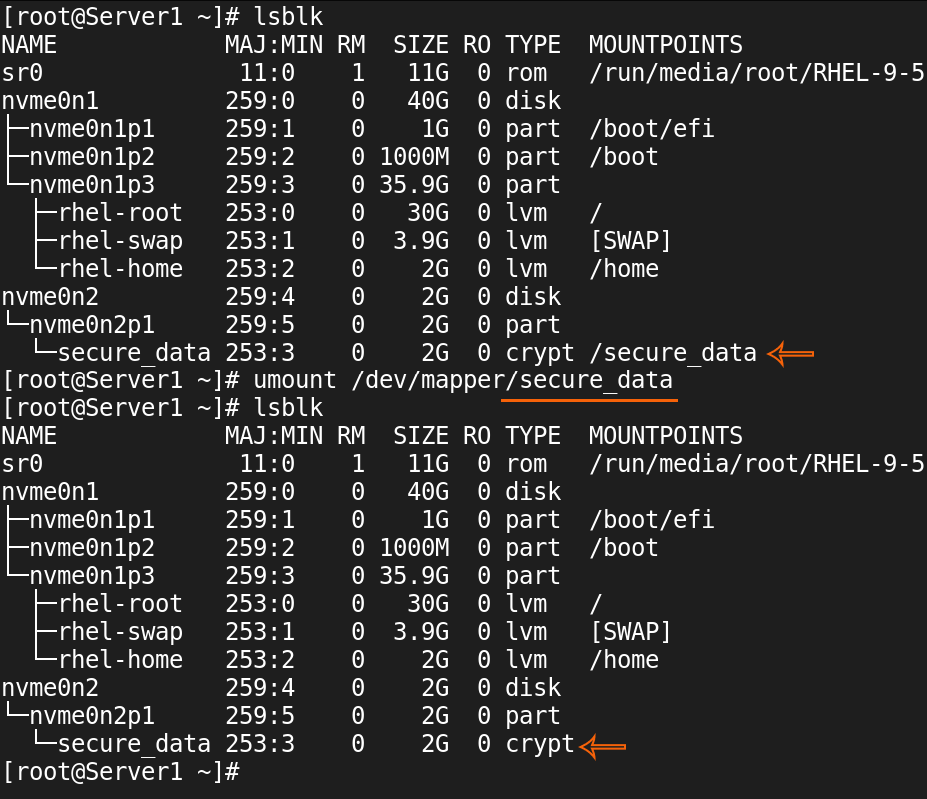
Unmount the mounted partition.
#lsblk
#umount /dev/mapper/secure_data
#lsblk
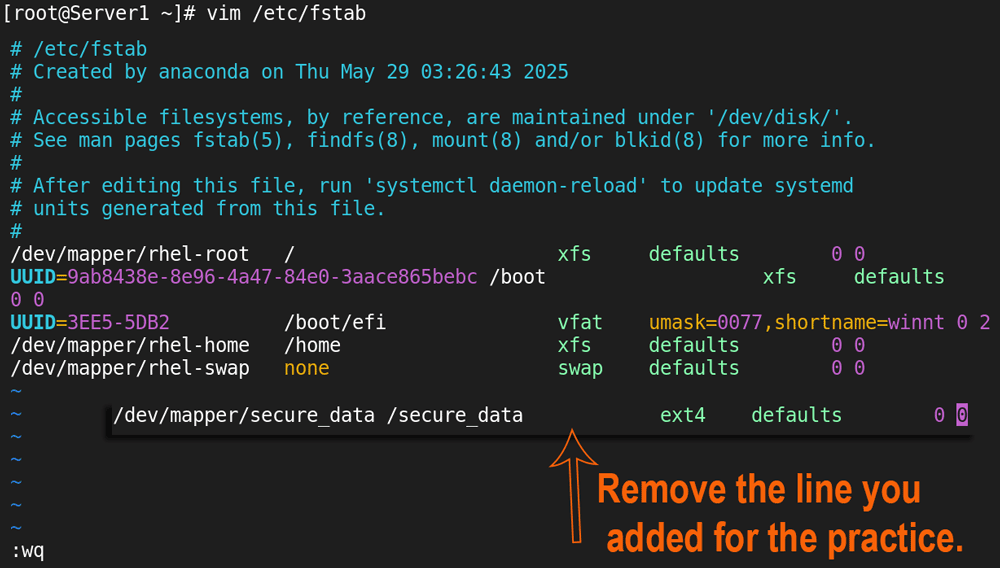
Remove the entry from the /etc/fstab file.
#vim /etc/fstab

/dev/mapper/secure_data	/secure_data	ext4 defaults 0 0
[Remove the above line or lines you added]
:wq
#
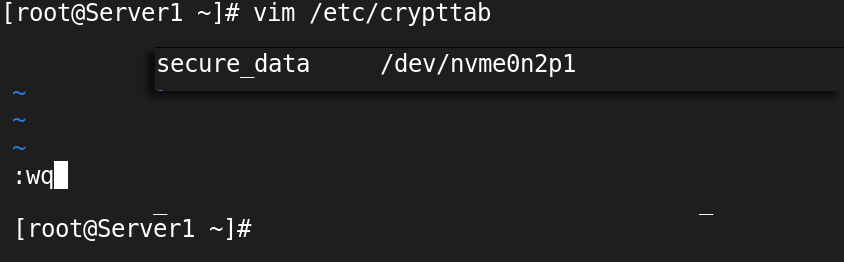
Remove the entry from the /etc/crypttab file
#vim /etc/crypttab

secure_data 	/dev/nvme0n2p1	[Remove this line]

:wq
#
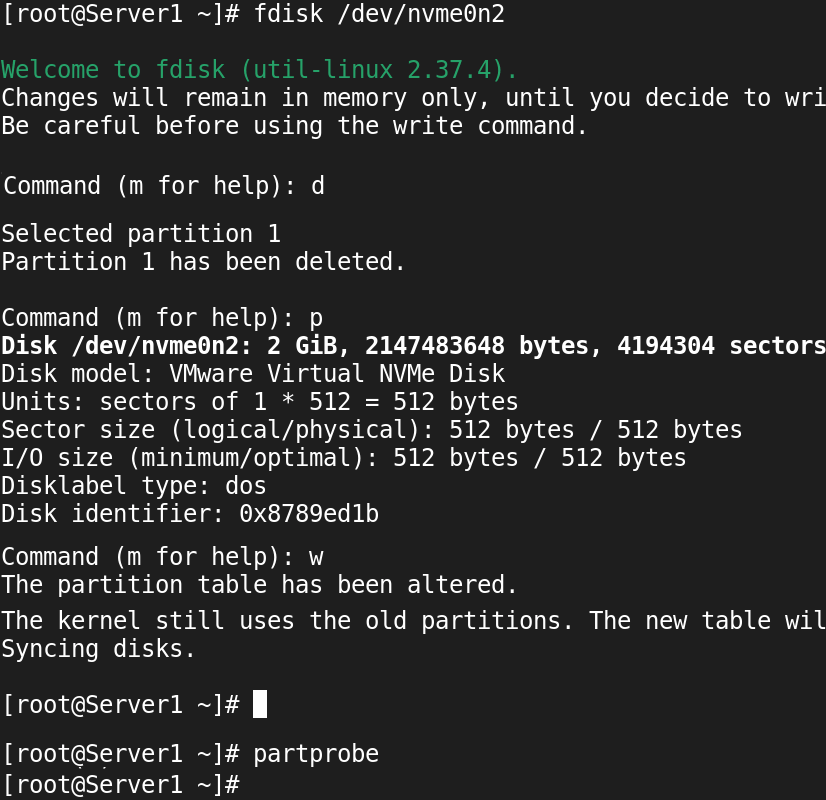
Delete the partitions you created for testing.
#fdisk /dev/nvme0n2
d	[delete a partition]
[Specify the partition number you want to delete]
p 	[list all partitions]
w	[save the changes]
#partprobe
Reboot the system.
#reboot -f
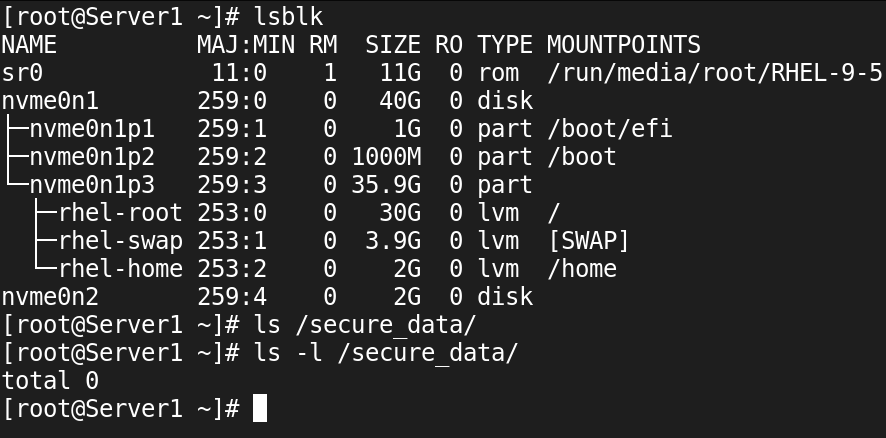
After the system reboots, list all partitions and access the mount point.
#lsblk
Conclusion
This tutorial explains the basic concepts and fundamentals of the LUKS encryption. LUKS encryption allows you to protect a drive when it is offline. You can access an encrypted drive only after specifying the password.
Author Laxmi Goswami Updated on 2026-03-18