How to configure SSH Server in Redhat Linux
SSH (Secure Shell) is a network service. It allows you to log in and access a system or device remotely. It exchanges data between the source and destination in an encrypted format. You can use it over any network type, including insecure or public networks. It includes many tools and utilities to fulfill the security requirements of modern networks. This tutorial explains how to configure and use it on Linux systems.
Lab Setup
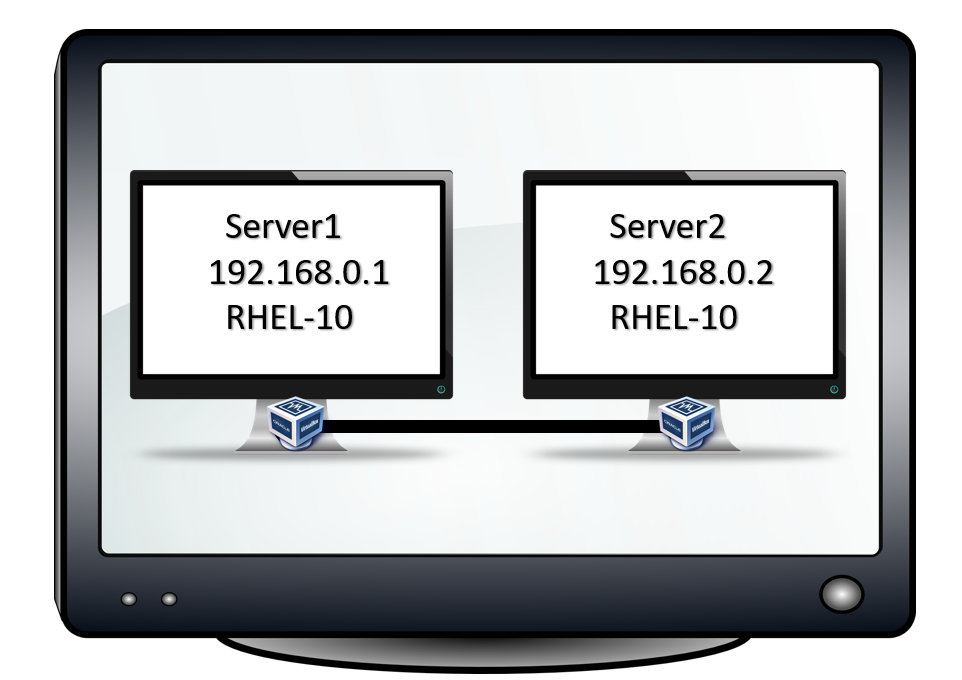
You need two Linux systems to practice the SSH configuration steps. You will use the first system to configure the SSH server, and the second system to test and verify the configuration. The following tutorial explains how to set up a virtual lab on VMware or VirtualBox to practice various Linux-related topics. You can use this lab or use your own lab to practice this topic.
RHCE Practice Lab Setup in VMWare and VirtualBox
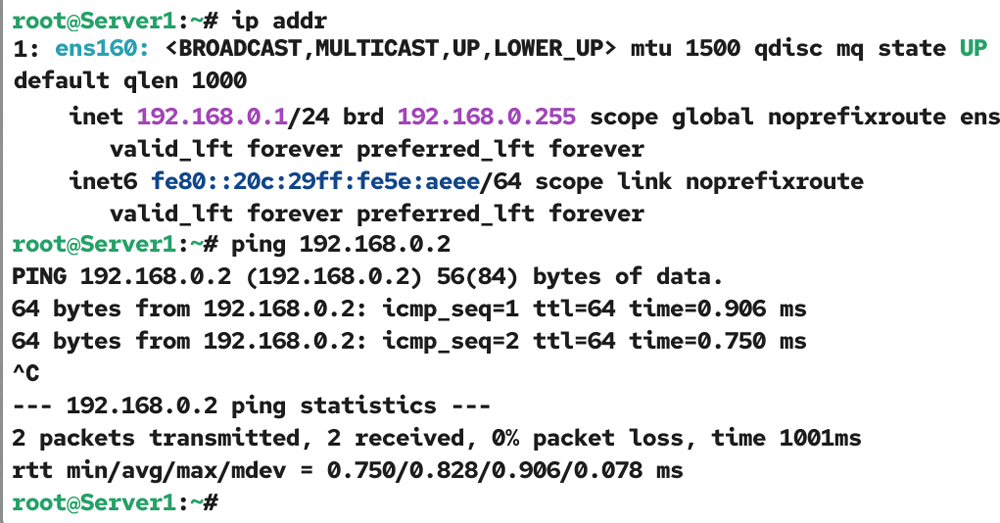
The systems you use for this lab must have connectivity. Check the IP address of the first system and test connectivity with the second system.
Repeat the same steps on the second system.
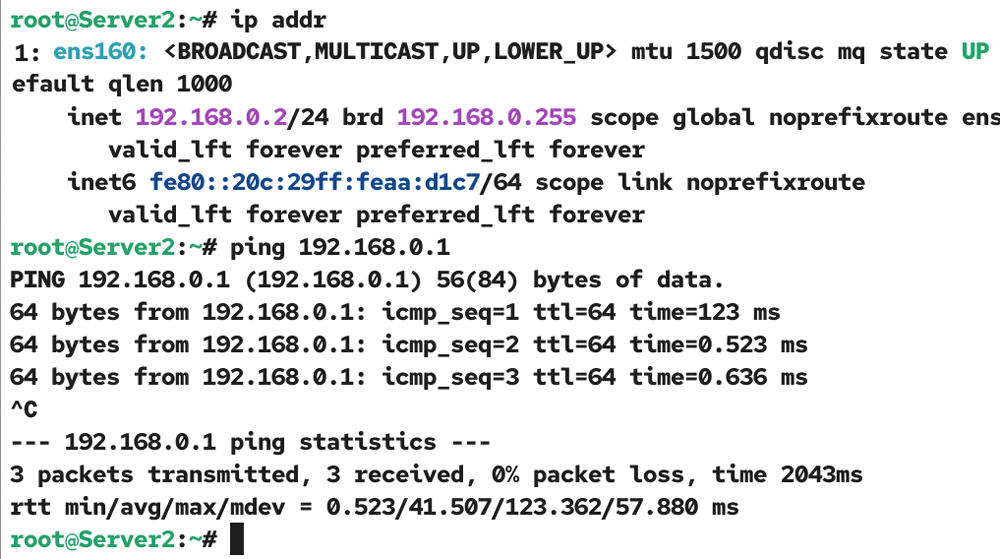
If both Linux systems have connectivity, you can use them for practice.
Installing SSH
SSH needs three essential packages: openssh, openssh-clients, and openssh-server.
The openssh package provides the ssh-keygen command and other tools for managing SSH connections.
The openssh-clients package includes the tools and commands (such as scp, sftp, ssh, and ssh-copy-id) you need on an SSH client to connect to an SSH server.
The openssh-server package provides the SSH service.
Depending on how you want to use a system, you may need two or all three packages. To use a system as both a server and a client, install all three packages. If you use a system only as a client, you can skip the openssh-server package. Similarly, you do not need the openssh-clients package on a system that you want to use only as a server. By default, all three packages are installed on Linux. To verify it, use the following command.
#dnf list openssh*
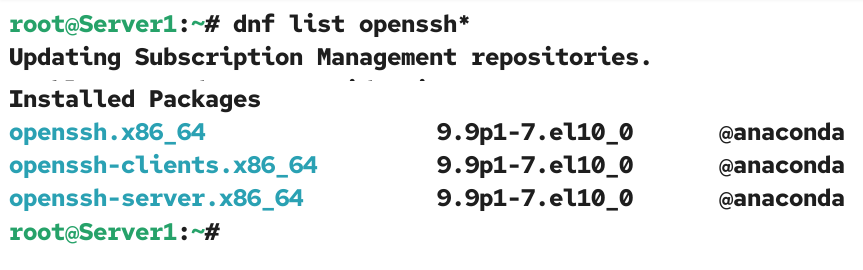
If any necessary package is not installed, use the following command to install it.
#dnf install [package_name] -y
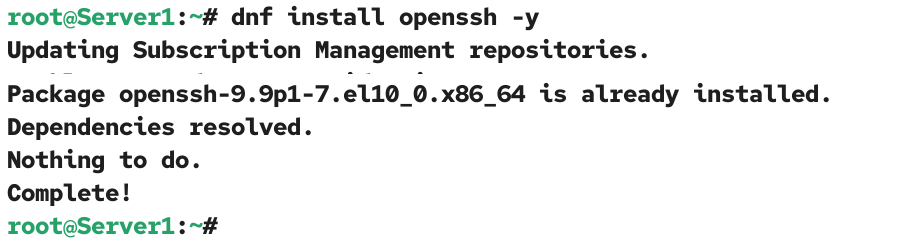
Verify the necessary packages are installed on both the server and client systems.
SSH server configuration
Since SSH is the default service for remote login, Linux automatically enables it at boot time and allows it through the firewall. Unless you have manually disabled it, configured the firewall to block it, or have a specific security requirement, you can use SSH out of the box without any configuration changes.
The following command starts the sshd daemon. The sshd daemon provides and runs the SSH server service.
#systemctl start sshd
The following command enables it at boot time.
#systemctl enable sshd
The following command displays the current status of this service.
#systemctl status sshd
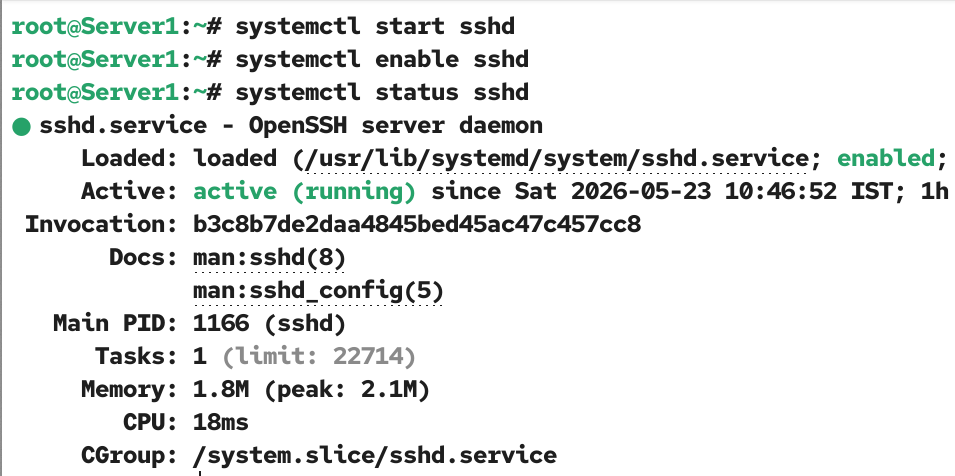
If this service is active and running, the SSH server is ready to accept the connection.
Configuring the firewall to allow SSH traffic
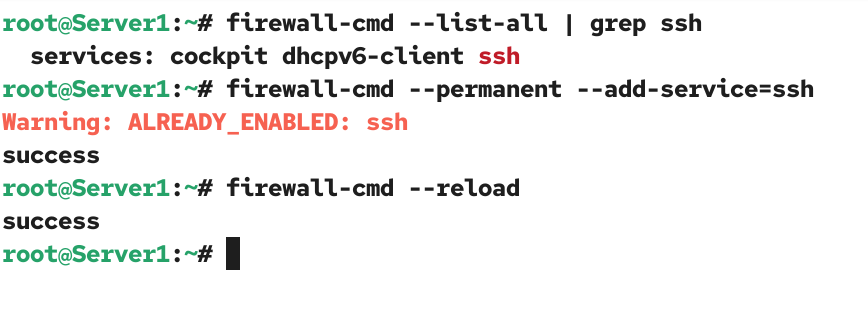
The default firewall configuration allows SSH traffic. If it is blocked, use the following command to allow it.
#firewall-cmd --permanent --add-service=ssh
Use the following command to reload the firewall.
#firewall-cmd --reload
Use the following to check and verify that the firewall allows SSH traffic.
#firewall-cmd --list-all | grep ssh
Creating user accounts
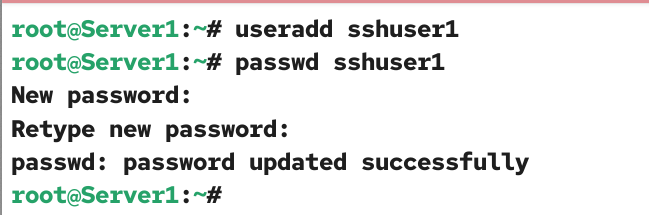
To access an SSH server remotely, you need a user account on it. Create a local user account on the SSH server. You will use this user account to log in to the SSH server from the client system.
#useradd [user_name]
#passwd [user_name]
Password V/s Key-based authentication
SSH supports two authentication methods: password and key-based.
A password is a classical method of authentication. In it, you create a password for each user account. To log in with a user account, you need its password. For example, on the SSH server, you created a user account named sshuser1. To log in with this user account, you need to provide its password during the login process. You need to enter this password each time you log in to the SSH server, which makes it less secure compared to the key-based method. Since this method does not save any authentication-related information on the client system, you can use any user account on the client to initiate the login process. For example, on the client system, you have three user accounts: user1, user2, and user3. You can use any of these to initiate the login process.
Key-based authentication is a modern authentication method. It uses keys for authentication. You can use it with or without the password method. In it, you create two keys on the client system: a public key and a private key. You save the private key on the client system and the public key on the server system. You can use any standard method to move the public key to the server. For example, you can transfer this key to a removable device (such as a USB drive), carry the device to the server, and copy the public key to the server system. Or, you can use the standard password-based authentication to log in to the SSH server. After login, copy the public key to the server.
No matter how you transfer the public key to the server, once it is done, SSH uses keys for further authentication. Since this method stores the login information on the client system, you must use the same user account you used to generate the keys to initiate the login process. For example, if you used the user account user1 to generate the keys, you must use this account to initiate the login process. The reason is that the private key is stored in the user’s home directory. The authentication process requires this key to initiate the login. If you use a different user account to initiate the login process, it will fail because it cannot find this key in that user’s home directory. For example, if you use the user account user2 to initiate the login process, it will not work as the required private key is not available in its home directory.
You can use any one or both authentication methods for your setup. Use the first method if you access the server from different client machines. The second method is the best when you use the same client machine to access the server. You can also configure user-specific authentication. For example, you can configure password-based authentication for one user account while using key-based authentication for another. The password-based authentication is the default. When a user attempts to log in to the SSH server, the server checks the incoming request and, based on the configured authentication method, uses the password or keys to authenticate.
SSH client configuration (with default password-based authentication)
By default, all Linux systems are configured as SSH clients. You can use any Linux system to connect to an SSH server. The following command lets you connect to the SSH server.
#ssh [user_name_of_the_user_you_created_on_ssh_server]@[ssh_server_ip]
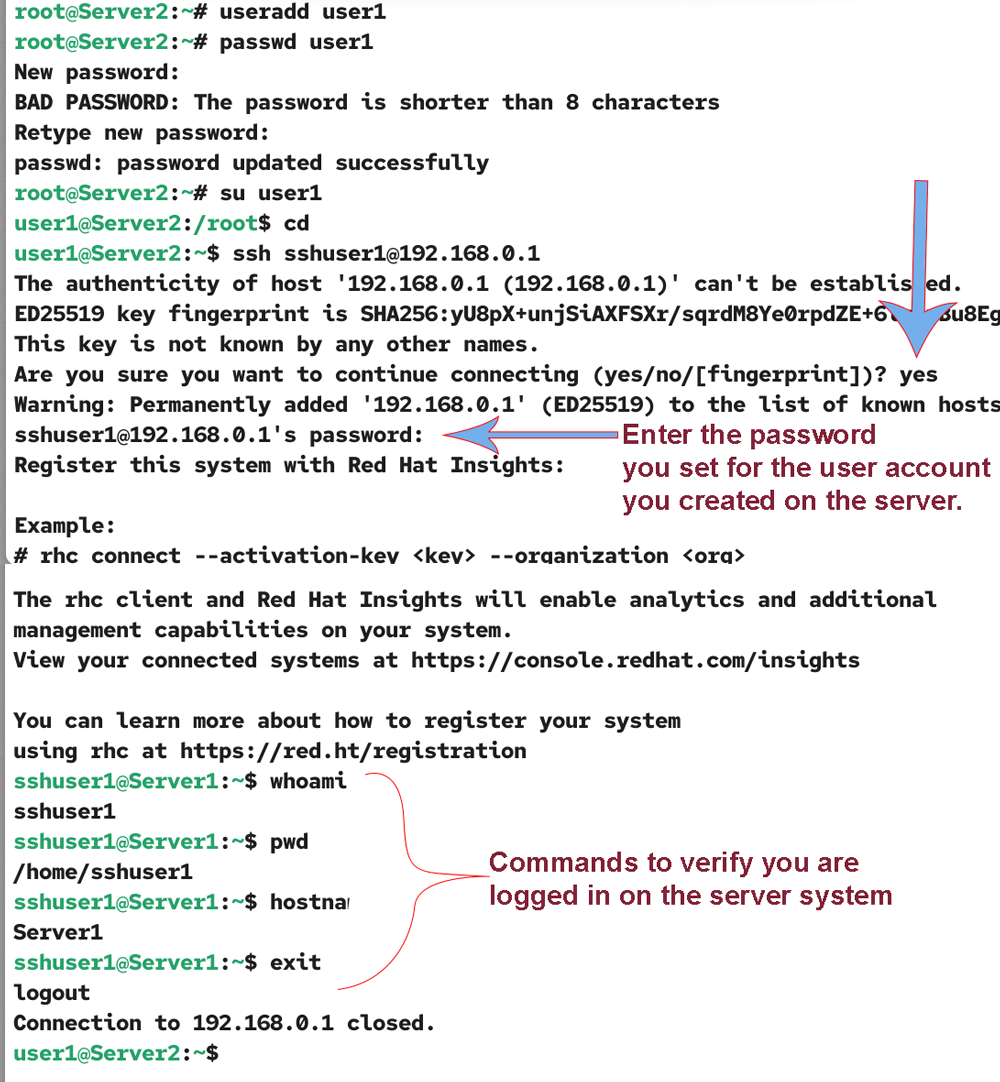
You can run this command under any user account. Mostly regular users use this command to log in to the SSH server to perform common tasks. To simulate this scenario, you can add and use a regular user account to run this command. Add a regular user account on the client and switch to it. From this account, run the command listed above to log in to the SSH server using the user account you created on the SSH server. It will prompt you to enter the password. Enter the password you set for the user account you created on the server.
#useradd user1
#passwd user1
#su user1
#cd
#ssh sshuser1@192.168.0.1
Replace sshuser1 with the username of the user account you added on the SSH server and 192.168.0.1 with the IP address of your SSH server. Enter the password of the remote user (sshuser1) when prompted.
$whoami
$pwd
#hostname
#exit
Run a few commands to verify you are logged in on the server system. To close the connection, use the exit command.
Configuring key-based authentication
On the client system, log in with the user account you want to use to access the SSH server and run the following command. For example, let’s suppose you want to use the user account user1 on the client to access the SSH server. Log in with this user account and run the following command.
#ssh-keygen
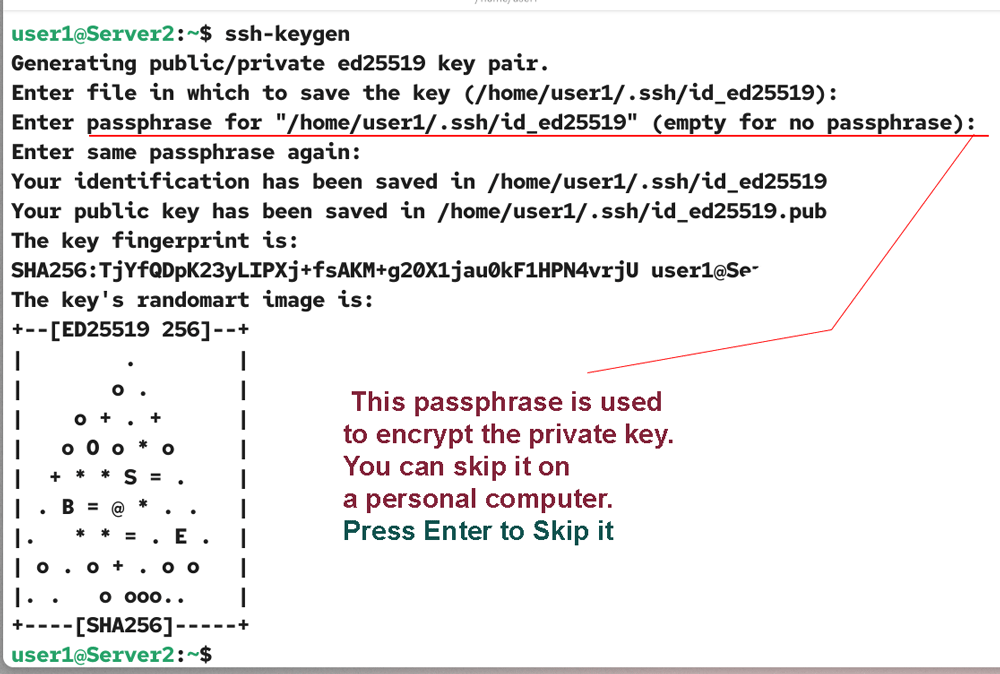
This command generates two keys: a public key and a private key, and places them in the user’s home directory who executed it. It prompts you to enter a passphrase. This passphrase is used to encrypt the private key. You can enter or skip it. If you enter it, the generated private key will be encrypted. If you skip it, the key will be stored in plain text. If you encrypt the key, you must enter this passphrase each time you access the SSH server. On a personal computer, you can skip it to avoid typing the passphrase each time you access the SSH server.
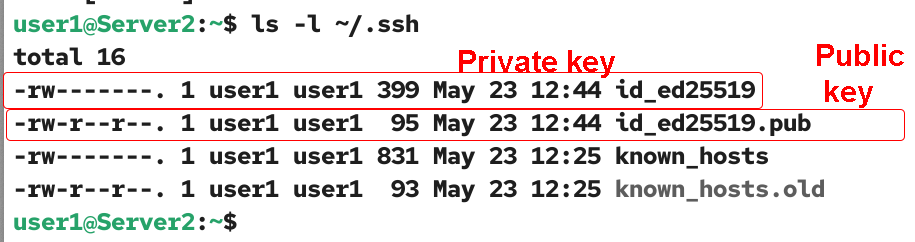
You need to move or copy the public key to the home directory of the user account you want to access remotely. For example, if you want to log in with the user account sshuser1, you need to copy this public key to his home directory. To copy the public key to the remote user’s home directory, use the following command.
#ssh-copy-id [user_name_of_the_user_you_created_on_ssh_server]@[ssh_server_ip]
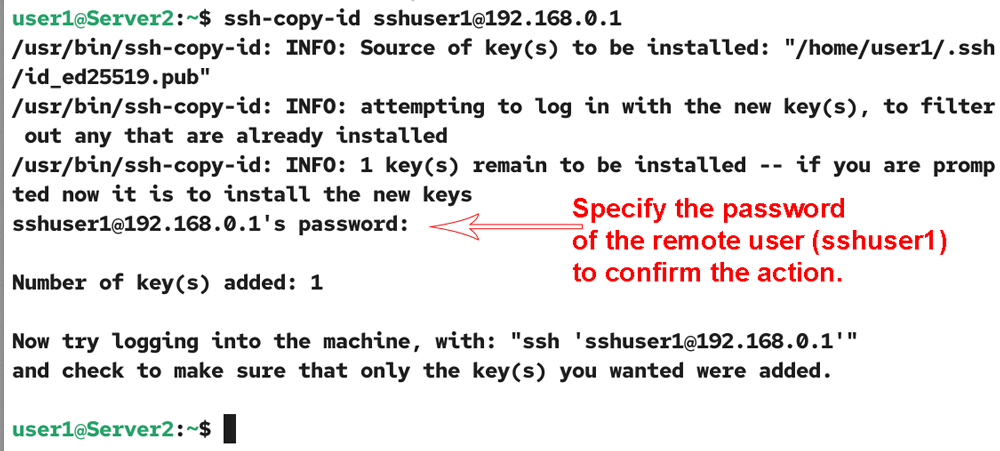
Since the public key is not available in the remote user's home directory at this time, this command uses the standard password to authenticate the action. Specify the password of the remote user (sshuser1) to confirm the action. Once both keys are placed in their respective directories, you can use the key-based authentication to log in to the server. Run the following command to access the SSH server.
#ssh [user_name_of_the_user_you_created_on_ssh_server]@[ssh_server_ip]
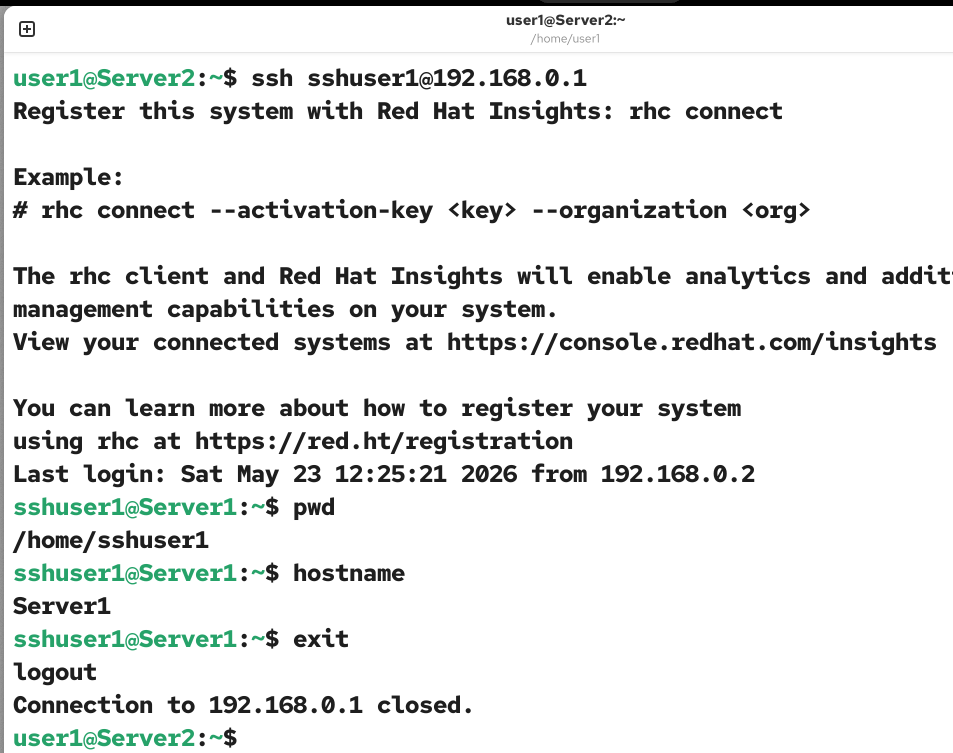
If you have encrypted the private key, you have to enter the passphrase to decrypt it. If not, this command logs you in on the server system.
Conclusion
SSH is an essential tool for secure remote access and management of Linux systems. It supports both password and key-based authentication. By following the steps outlined in this tutorial, you can set up, configure, and use SSH effectively in your environment.
Author Laxmi Goswami Updated on 2026-05-24