EIGRP Configuration Step-by-Step Guide
EIGRP (Enhanced Interior Gateway Routing Protocol) is a Cisco proprietary routing protocol. It is widely adopted due to its advanced features, scalability, and suitability for networks of varying sizes and topologies. This tutorial explains the commands and configurations you need to enable, verify, and manage EIGRP on routers.
Enabling EIGRP
The following Global configuration mode command enables EIGRP.
Router(config)#router eigrp AS_number
This command enables EIGRP and enters EIGRP configuration mode. It needs an AS (Autonomous System) number as an argument. An AS number groups the routers that can share routing information. If two routers have different AS numbers, they cannot share routing information, even if they run the same routing protocol and are directly connected. The range for the AS number is 1-65535. You can pick any number from this range. You must use the same number on all participating routers.
After enabling EIGRP, you need to add the networks you want EIGRP to advertise. The following EIGRP configuration mode command includes the specified network in the EIGRP advertisement.
Router(config-router)#network network_address [wildcard_mask]
This command requires two parameters: the network address (subnet ID) to be included in EIGRP and the corresponding wildcard mask, which defines the range of addresses you want to advertise. To calculate the wildcard mask, subtract its subnet mask from 255.255.255.255. The following table provides a few examples.
| Subtract from | 255.255.255.255 | 255.255.255.255 | 255.255.255.255 | 255.255.255.255 |
| Subnet mask | 255.255.0.0 | 255.255.255.252 | 255.128.0.0 | 255.0.0.0 |
| Wildcard mask | 0.0.255.255 | 0.0.0.3 | 0.127.255.255 | 0.255.255.255 |
EIGRP configuration example
Set up a lab as shown in the following image. You can use real devices or a network simulation software to set up this lab. This tutorial uses Packet Tracer network simulation software. It also provides download links for the lab used in this example.
Packet Tracer lab with essential configuration

This lab is optional and required only if you want to practice this topic. If you are only looking for commands and configuration steps, you can skip this.
EIGRP configuration
The following commands configure and enable EIGRP on Router0.
Router(config)#router eigrp 20
Router(config-router)#network 10.0.0.0 0.0.0.255
Router(config-router)#network 192.168.1.244 0.0.0.3
Router(config-router)#network 192.168.1.0 0.0.0.3
The first command enables EIGRP under the AS number 20 and enters EIGRP configuration mode.
The second command adds network 10.0.0.0/8 to its advertisement list. The subnet mask of this network is 255.0.0.0. So, it used the wildcard mask 0.255.255.255.
    255 .255 .255 .255
 –  255 .0   .0   .0
========================
    0   .255 .255 .255
========================
When you add a network, the router checks the IP configuration of all interfaces and enables EIGRP operation on the matching interfaces. Since the IP address of interface F0/0 is in the 10.0.0.0/8 network, the router enables EIGRP on this interface.
The third command adds the network 192.168.1.244 255.255.255.252 (/30) to the EIGRP operation. Since this network is configured on the Serial interface S0/0/0, the router enables EIGRP on it.
The fourth command adds the network 192.168.1.0 255.255.255.252 (/30) to the EIGRP operation. This network is configured on the F0/1 interface. Thus, the router enables EIGRP on this interface.
Router1
Router(config)#router eigrp 20
Router(config-router)#network 192.168.1.244 0.0.0.3
Router(config-router)#network 192.168.1.248 0.0.0.3
Router(config-router)#
Router2
Router(config)#router eigrp 20
Router(config-router)#network 192.168.1.248 0.0.0.3
Router(config-router)#network 192.168.1.252 0.0.0.3
Router(config-router)#
Router3
Router(config)#router eigrp 20
Router(config-router)#network 192.168.1.8 0.0.0.3
Router(config-router)#network 192.168.1.4 0.0.0.3
Router(config-router)#
Router4
Router(config)#router eigrp 20
Router(config-router)#network 192.168.1.4 0.0.0.3
Router(config-router)#network 192.168.1.0 0.0.0.3
Router(config-router)#
Router5
Router(config)#router eigrp 20
Router(config-router)#network 20.0.0.0 0.255.255.255
Router(config-router)#network 192.168.1.252 0.0.0.3
Router(config-router)#network 192.168.1.8 0.0.0.3
Router(config-router)#
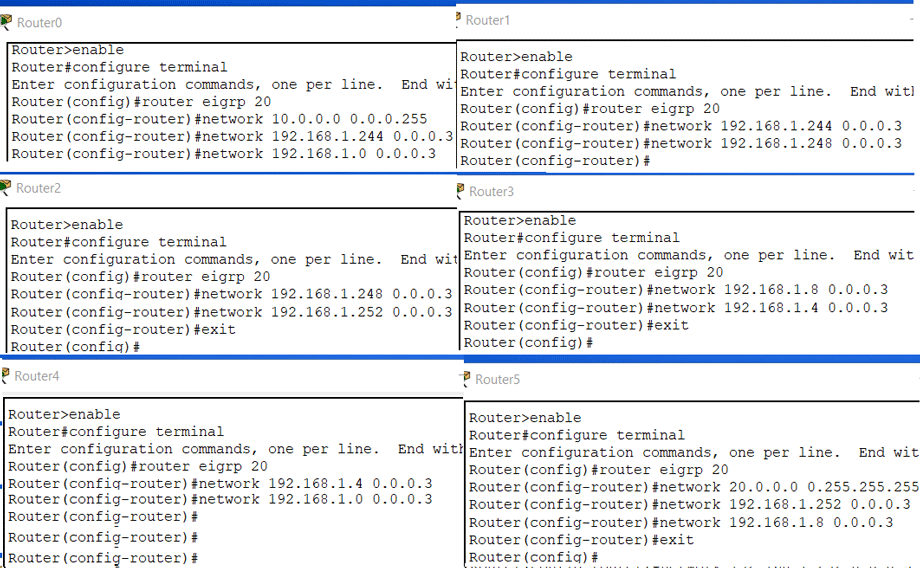
Verifying EIGRP configuration
You have two options to verify the EIGRP configuration.
- Testing end-to-end connectivity
- Using the show ip route eigrp command
To test connectivity between two devices, use the ping command. This command sends echo packets to the destination device. If the destination device replies, the messages are displayed on the command prompt. A successful reply confirms the connectivity between the source and destination devices. You can also use the tracert command. This command shows the path packets take to reach the destination device.
Test connectivity between PC0 and Server0 and print the path data packets take.

You can use the "show ip route eigrp" command in Privilege Exec mode on the router to list all routes added in the routing table by EIGRP.
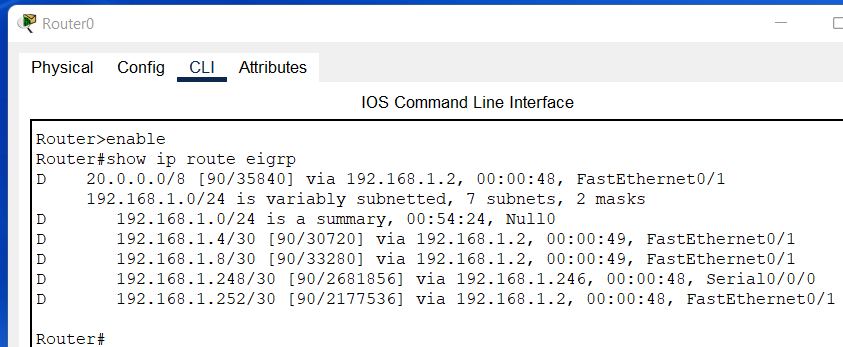
If multiple routes to the same destination are available, EIGRP compares all routes, selects the best route, and adds it to the routing table. To view all available routes for each destination, you can use the "show ip eigrp topology" command.
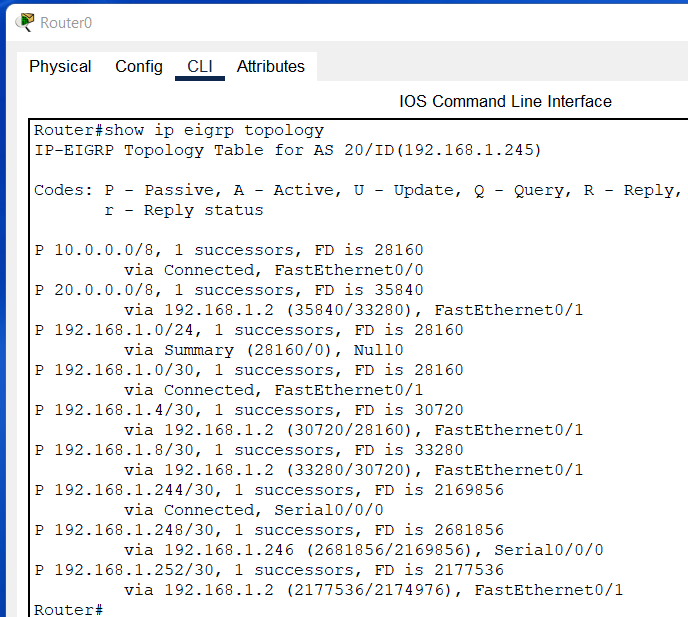
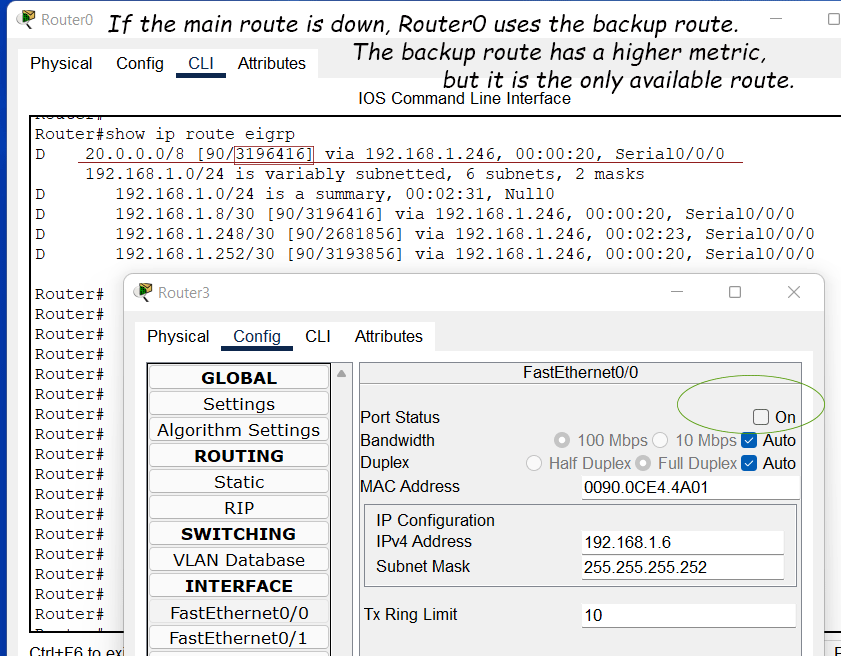
To select the best route, it compares all routes' metrics and selects the one with the lowest metric. For example, in this network, Router0 has two routes (via Serial0/0/0 and F0/1) to reach the 20.0.0.0/8 network. Router0 selects the route via F0/1 because its metric is lower than that of Serial0/0/0, and adds it to the routing table.
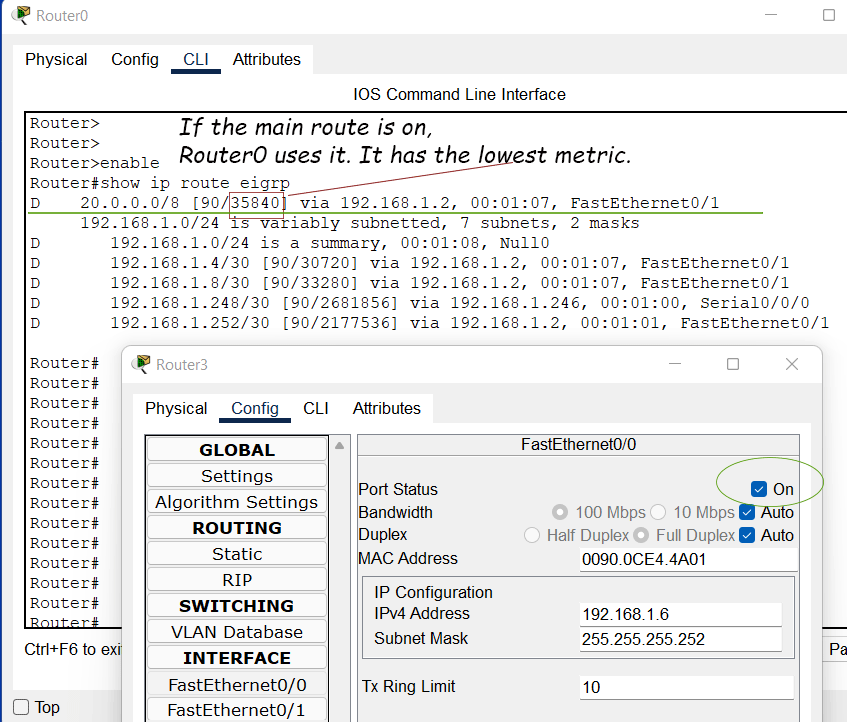
It uses the remaining route as the backup and adds it to the routing table immediately if the primary route fails. To verify this, power off the F0/0 interface of Router3. This interface forwards packets along Router0's primary route to the 20.0.0.0/8 network. When the interface is powered off, Router0's main route becomes unavailable. Router0 immediately switches to the backup route via R1 and R2.
The following link provides this lab with the above configuration.
This tutorial is part of the tutorial series "Enhanced Interior Gateway Routing Protocol (EIGRP) Features, Functions, and Configurations Explained". Other parts of this series are the following.
Chapter 1 EIGRP Features, Operations, and Overview
Chapter 2 EIGRP Tutorial – Basic concept explained
Chapter 3 EIGRP Packet Types and RTP Protocol
Chapter 4 EIGRP Neighborship Requirements and Conditions
Chapter 5 EIGRP Configuration Step-by-Step Guide
Chapter 6 EIGRP Metric K Values Explained with Examples
Conclusion
EIGRP delivers robust, scalable, and efficient routing in network environments. By following the commands and configuration steps explained in this tutorial, you can configure, test, and verify EIGRP in any network with ease.
Author Laxmi Goswami Updated on 2026-01-09