XAMPP htdocs Permission issue and Fix in Ubuntu
The XAMPP htdocs folder saves websites. By default, only the root user can write in this folder. Ubuntu keeps the root account locked. With the default configuration, you can not use the root account. Since only the root account has the write permission on this folder and by default, the root account is locked, this folder becomes unwritable for all.
You have three solutions to this problem: -
- You can enable the root account
- You can make this folder writable for all
- You can transfer the ownership of this folder to your account
Enabling the root account
The root account is the highest-privileged account. If you use this account, Linux does not stop you from making any changes to the system. What's worse is that it doesn't even warn you before making such a change. You might accidentally change or delete a configuration file that can crash the system. By default, Ubuntu keeps the root account locked. It prevents users from using this account for regular tasks.
A regular user account has moderate privileges. You can perform all regular tasks with this account. However, you cannot make any changes to the system configuration. If you intentionally or accidentally perform a task that changes the system properties, the system asks you to type your password to authenticate the action. Based on your scenario, you can authenticate or reject the action.
Enabling the root account is the worst solution to fix the XAMPP htdocs folder permission issue. I will not recommend this method. However, if you want to use this method, you can visit the following tutorial. It explains how to enable the root account on Ubuntu.
How to Enable and Disable Root Login in Ubuntu
Making the htdocs folder writable for all
You can change the default file permission of this folder in such a way that it allows everyone to write. This option is not as bad as the first option. However, it is also not a perfect solution to the problem. It has two issues.
You can change the file permission of existing files and directories only. When you create new directories or files, they get the default file permission. That means you must update the file permission each time you make a new file or directory. It creates security risks. If your system is part of a network, network users can use this folder to save and run miscellaneous or harmful scripts.
The following command makes this folder world writable.
$sudo chmod -R 777 /opt/lamp/htdocs
Example
The system used for this example has the default installation of XAMPP. The following tutorials explain how to install and automatically start XAMPP on Ubuntu.
How to install XAMPP on Ubuntu Linux
Auto Start XAMPP at Startup in Ubuntu Linux
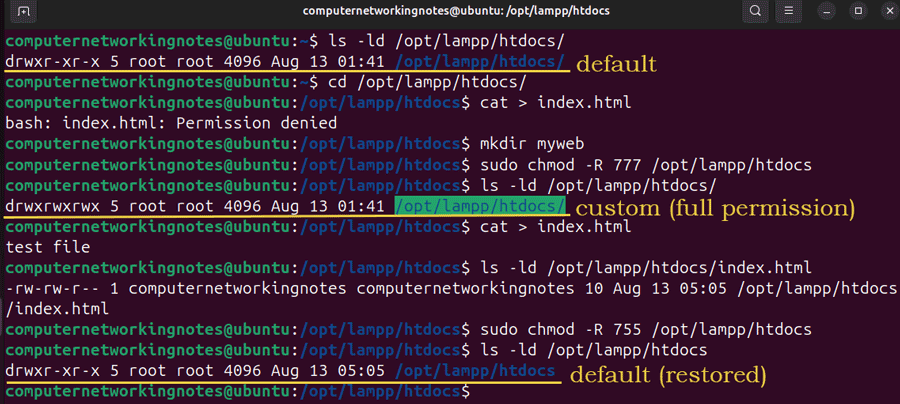
Before we make the htdocs folder world-writable, let us verify the default installation does not allow a regular user to write in this folder. The following commands verify this default behavior.
$ls -ld /opt/lampp/htdocs
$cd  /opt/lampp/htdocs
$cat  > index.html
$mkdir myweb
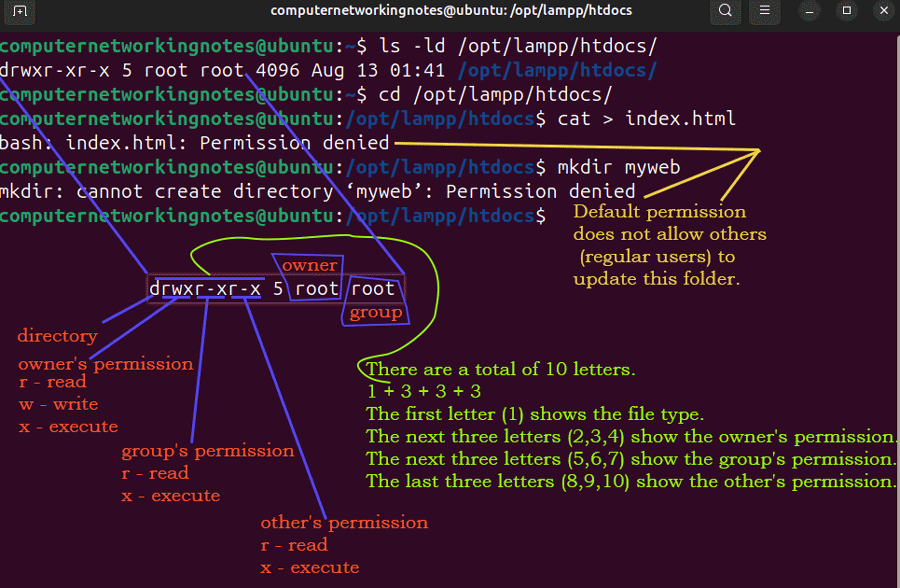
- The first command lists the file permission of the htdocs folder.
- The second command sets the present working directory to the /opt/lampp/htdocs directory.
- The third command creates a test file.
- The fourth command makes a directory.
With the default file permission, a regular user can not create a file or folder in this folder. The system displays a 'Permission denied' error message as the output of the third and fourth commands. You can also verify this on GUI. Open the htdocs folder and right-click. The right-click context menu will not highlight the New Folder option.
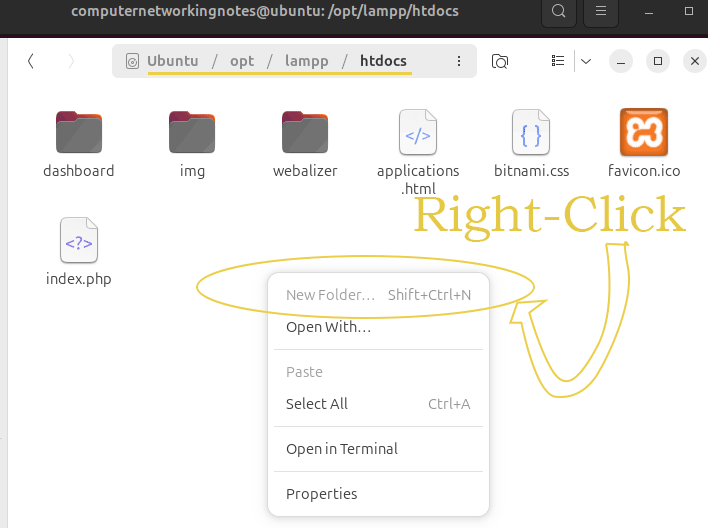
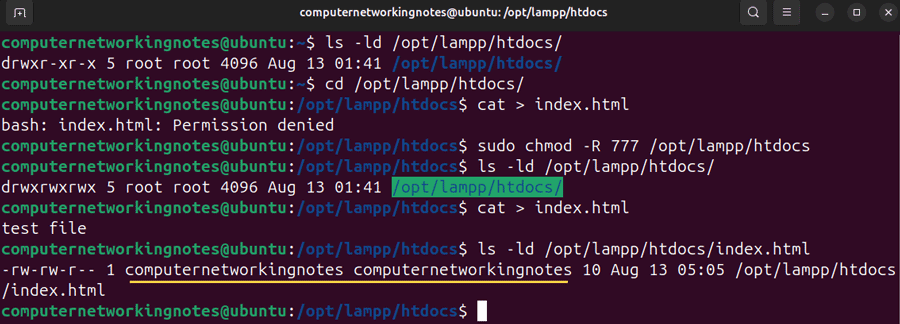
Make the htdocs folder world-writable and run the above-listed third and fourth commands again. With the updated file permission, the folder allows the user to create the file and folder.
$sudo -R 777 /opt/lampp/htdocs
$ls -ld  /opt/lampp/htdocs
$cat  > index.html
$mkdir myweb
Verify this on GUI.
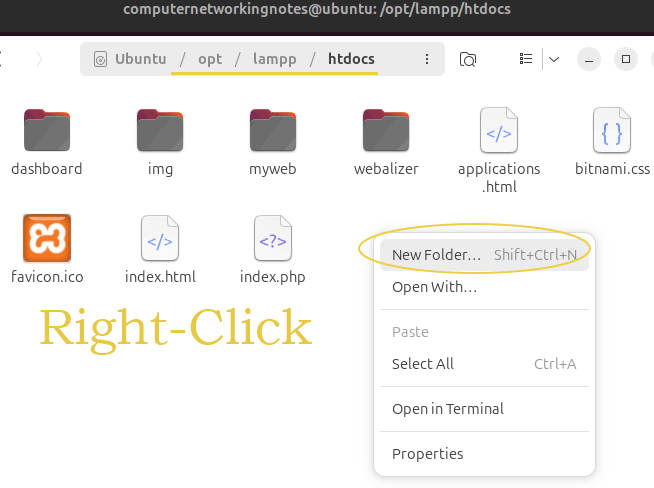
As mentioned earlier, this option is not good from a security perspective. Instead of using this option, you should use the third option. The following command resets the default file permission on this folder.
$sudo -R 755 /opt/lampp/htdocs
Transferring the ownership of the htdocs folder
Transferring the ownership of the htdocs folder to your user account is the best option to fix the htdocs file permission. After that, you can use this folder as a regular folder. The following command transfers the ownership of this folder to your user account.
$sudo chown -R [username]:[groupname] /opt/lampp/htdocs
Replace username and groupname with your login name. When we add a new user account, Linux automatically creates a group of the same name and adds the user account. You can use the same group name here. For example, if your username is john, use john:john in both options. To know your username, you can use the whoami command.
Example
$whoami
$sudo chown -R [username]:[groupname] /opt/lampp/htdocs
$ls -ld  /opt/lampp/htdocs
$mkdir myweb
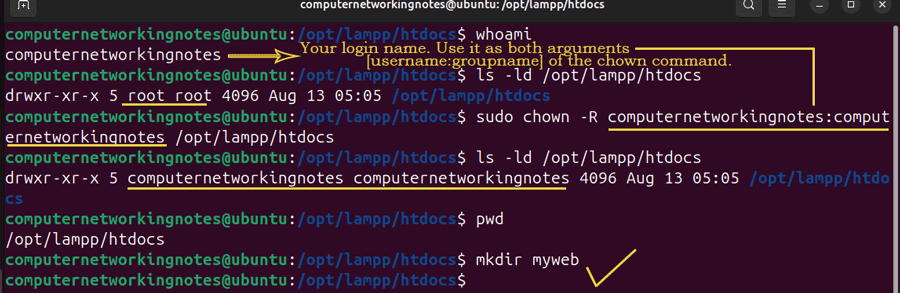
- The first command prints the username.
- The second command transfers the ownership to the given username.
- The third command verifies the ownership transfer.
- The fourth command creates a folder to confirm the regular user account can update this folder.
You can also verify this on GUI.
Conclusion
By default, the XAMPP htdocs folder allows only the root user to update it. Using the root account for regular tasks is not safe. This tutorial explained how you can transfer the ownership of this folder to a regular user account.
Author Laxmi Goswami Updated on 2026-05-13