How to Update Firefox in Ubuntu Linux
Firefox is the default web browser on Ubuntu. Ubuntu installs it with the default installation. Although you can use it immediately after the installation, you should update it before use. The Firefox version the installation process installs may not be the latest when you use it. Using an outdated version of the web browser to access the internet is not safe. Hackers can use known bugs of outdated versions to hack your system. Updating Firefox to the latest version mitigates these security risks.
Checking the installed version of Firefox
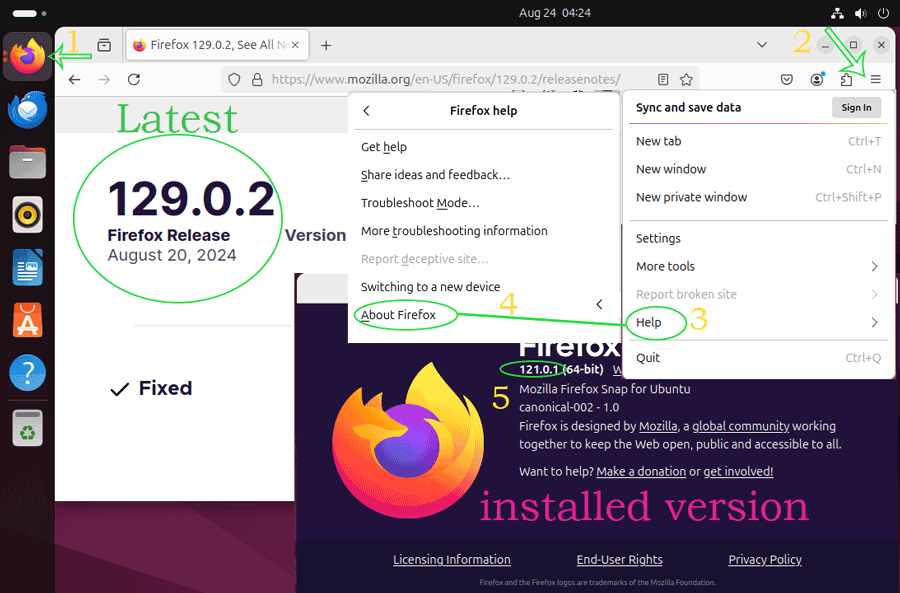
Before we update Firefox to the latest version, let us check the version of the installed Firefox to confirm whether we need an update or already have the latest version. To check the installed version, open Firefox and click the Menu icon. Click Help and click About Firefox. It opens a new Window that displays the version information.
To confirm whether the installed version is latest, visit the following web page.
https://www.mozilla.org/en-US/firefox/notes/
The above webpage displays information about the latest version of Firefox.
Compare the installed version number with the version number displayed on this page. If both are the same, you already have the latest version. If not, you need an update.
Updating the installed version of Firefox
Ubuntu installs Firefox as a core extension. For easier management, Ubuntu automatically creates and configures necessary repositories for the core extensions. These repositories contain the information Ubuntu needs to manage and update the core extensions. There are two ways to update a core extension from these repositories: -
- Update the entire system.
- Update the extension individually.
Updating the entire system
When we perform a system update, Ubuntu updates all core extensions to their latest and stable version. Since Firefox is a part of the core extensions, it also updates. To perform a system update, connect the system to the internet and run the following commands.
$sudo apt-get update
$sudo apt-get upgrade
The first command synchronizes and updates all configured repositories. During this process, Ubuntu performs several essential tasks, such as checking whether all configured repositories are accessible, downloading and importing required public keys, comparing locally installed packages with remotely available packages to prepare a list of available updates, etc. Software package management (adding/removing repositories, installing/removing software, etc.) requires authentication. To authenticate the action, you must type your login password.
The second command pulls all available updates from the configured repositories and installs them on the system. If you have a cable or fast-speed internet connection without a limited data plan, it would be better to use this option.
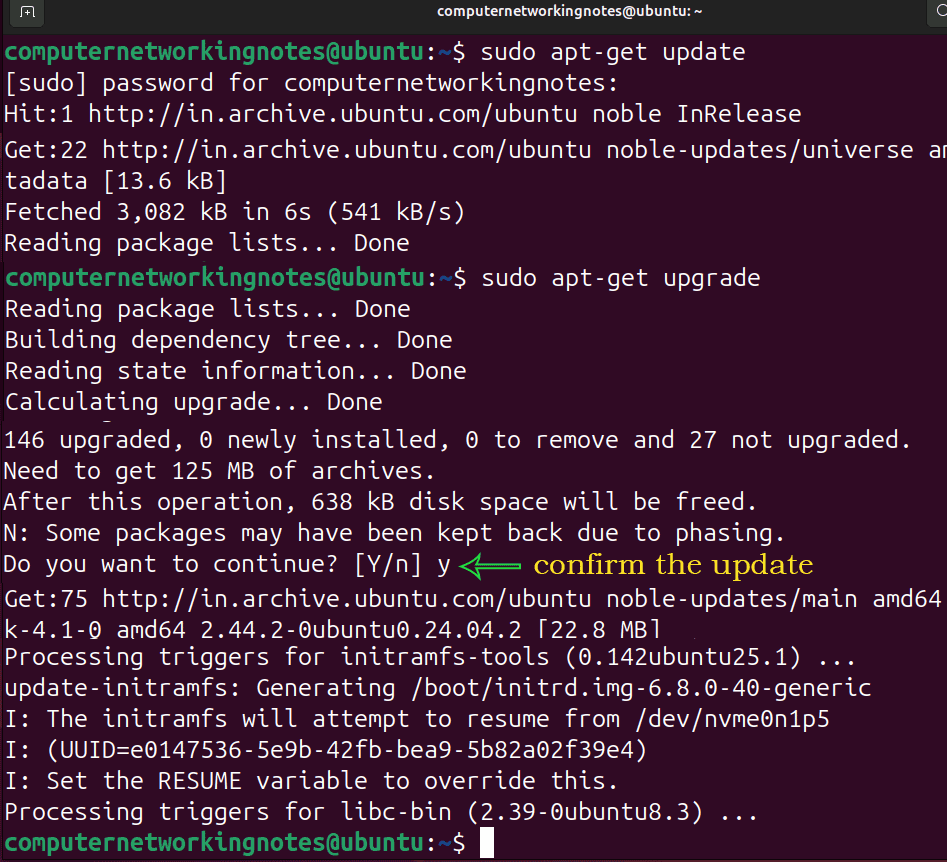
Once all updates are fetched and installed, reboot the system with the following command.
$sudo reboot -f

After restart, open Firefox and view the version again to confirm the update.
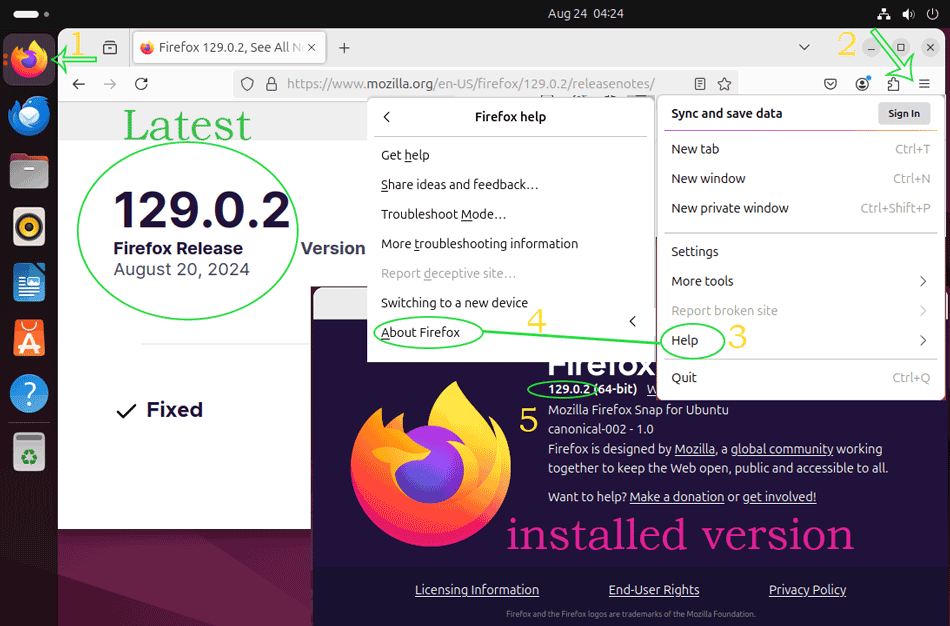
Since this option updates all extensions and system packages, it may consume a lot of data and time. Using this option with a limited data plan or a slow internet connection is not a good choice. In that case, you can use the following option.
Updating Firefox individually
The following command only updates Firefox.
$sudo apt-get update
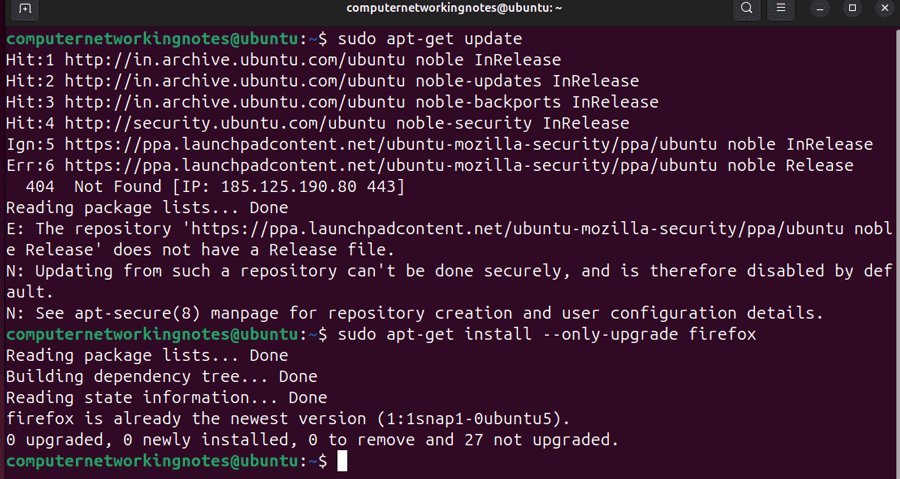
$sudo apt-get install --only-upgrade firefox
As explained above, the first command synchronizes and updates all configured repositories. The second command updates Firefox only.
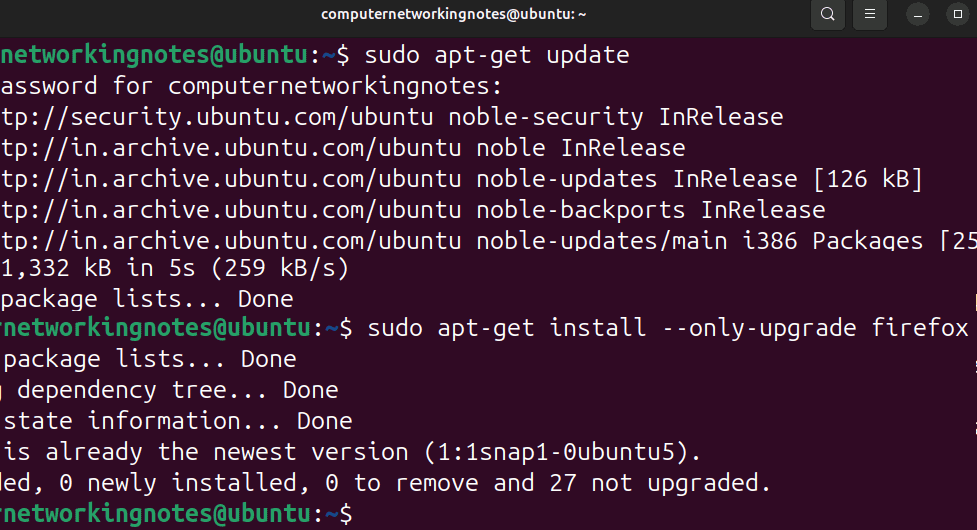
Ubuntu caches all package information to speed up the software management-related tasks. The above commands do not update it. You have two options to clean it: a system reboot and the following command.
$sudo apt-get clean
After updating or removing any package, you must run the above command or reboot the system before verifying the operation.

Installing and updating a developer version
With the regular and stable versions, Firefox also releases the developer versions. A developer version contains the latest updates and features. Firefox provides these updates and features without testing, so these versions may contain bugs or not work as expected.
As a regular user, you never need to use these versions. These versions are for administrators, programmers, security testers, or developers who want to test their applications or programs with the new version.
Ubuntu does not update the installed version to a developer version. If you need a developer version for testing, you need to add the developer repository of Firefox. The following command adds it.
$sudo add-apt-repository ppa:ubuntu-mozilla-security/ppa
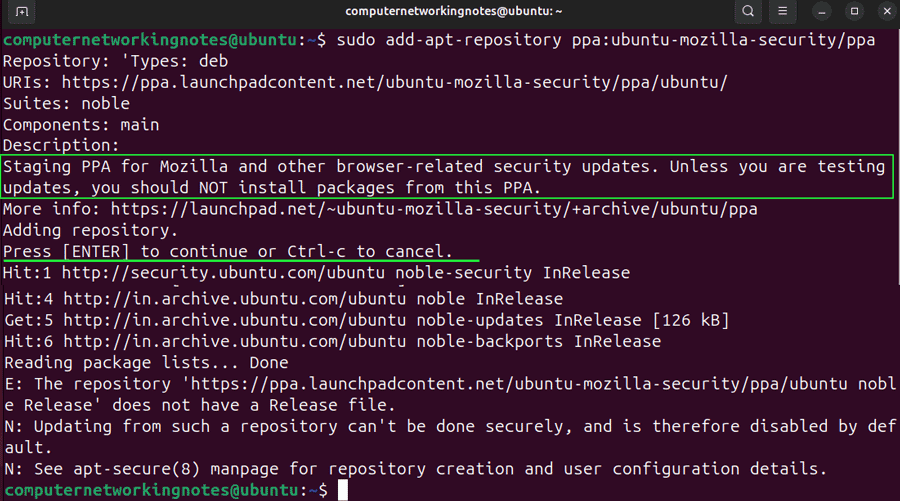
After adding the developer repository, you can use the following commands to update it to the latest developer or stable version.
$sudo apt-get update
$sudo apt-get install firefox
Conclusion
Firefox is an open-source web browser. It is the default browser on Ubuntu. In this tutorial, I explained how to update or upgrade it to the latest stable or developer version.
Author Laxmi Goswami Updated on 2026-05-08